Native OBS plugin · Free forever
DockX
Your OBS, your way.
DockX isn't one plugin. It's a whole suite of upgrades that change the way you run OBS. Build the dock layout OBS never allowed, find any source from one search bar, save your layouts and switch them with a hotkey, theme OBS in your own colors, fold your scenes into folders, and far more. Everything streamers have been asking OBS for, in a single install.
Free with a StrmrX account. One login, no card, cancel any time.
DockX was built by a streamer, not a software company. Every feature started as something its developer ran into while live and OBS just couldn't do: a true full height chat column, a fast way to find a source, layouts that follow the scene. Nobody else had solved it, so he built it himself, then kept going. What began as one fix grew into a full set of the upgrades OBS users have been asking for for years.
See it in action
Set up OBS the way you actually stream
A true full height chat column beside your stacked panels, an editable preview, scene folders, your activity feed, control decks and mixer, all nested exactly where you want them. Drag any dock anywhere. OBS finally bends to your setup, not the other way around.
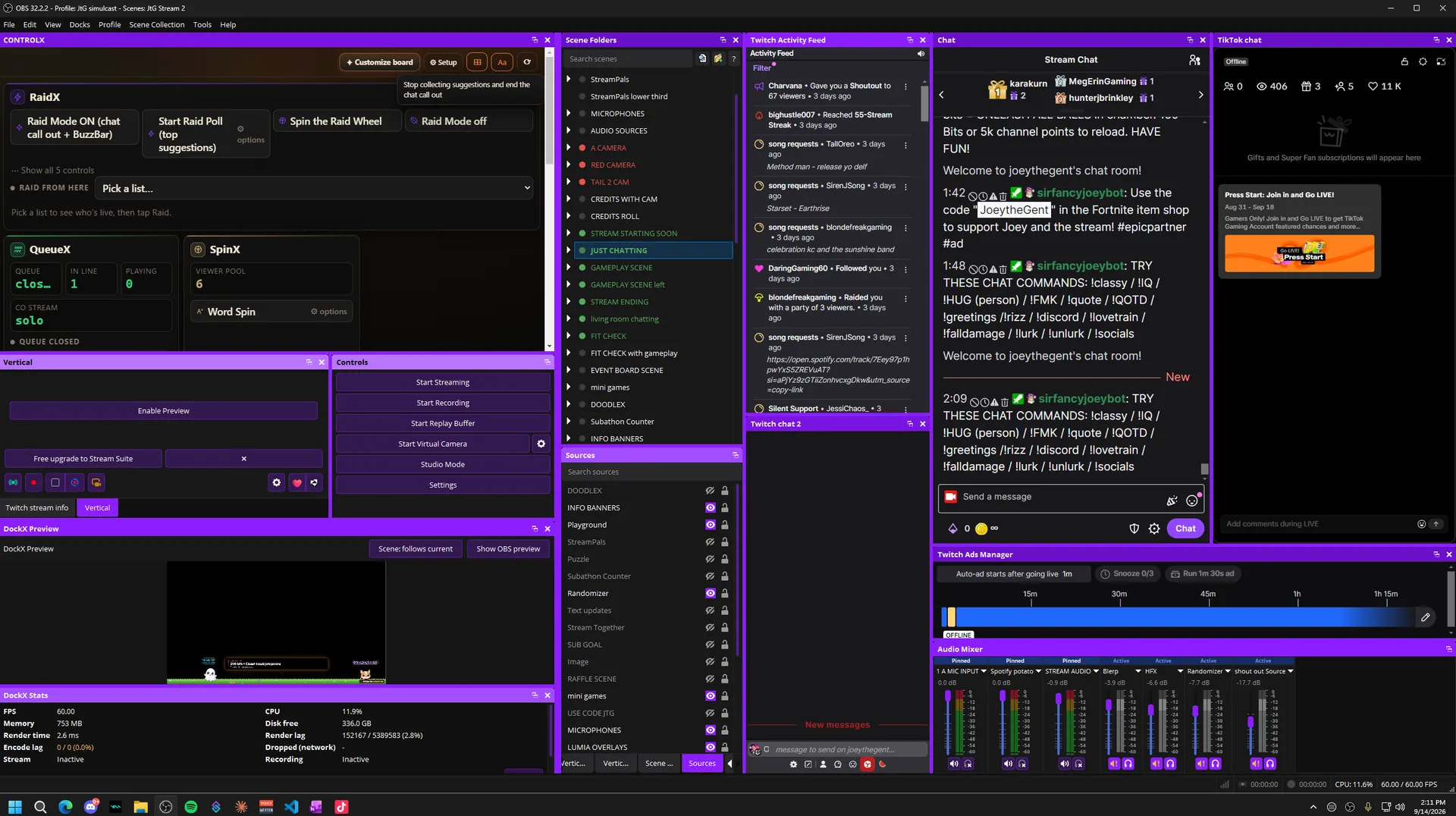
Make it yours
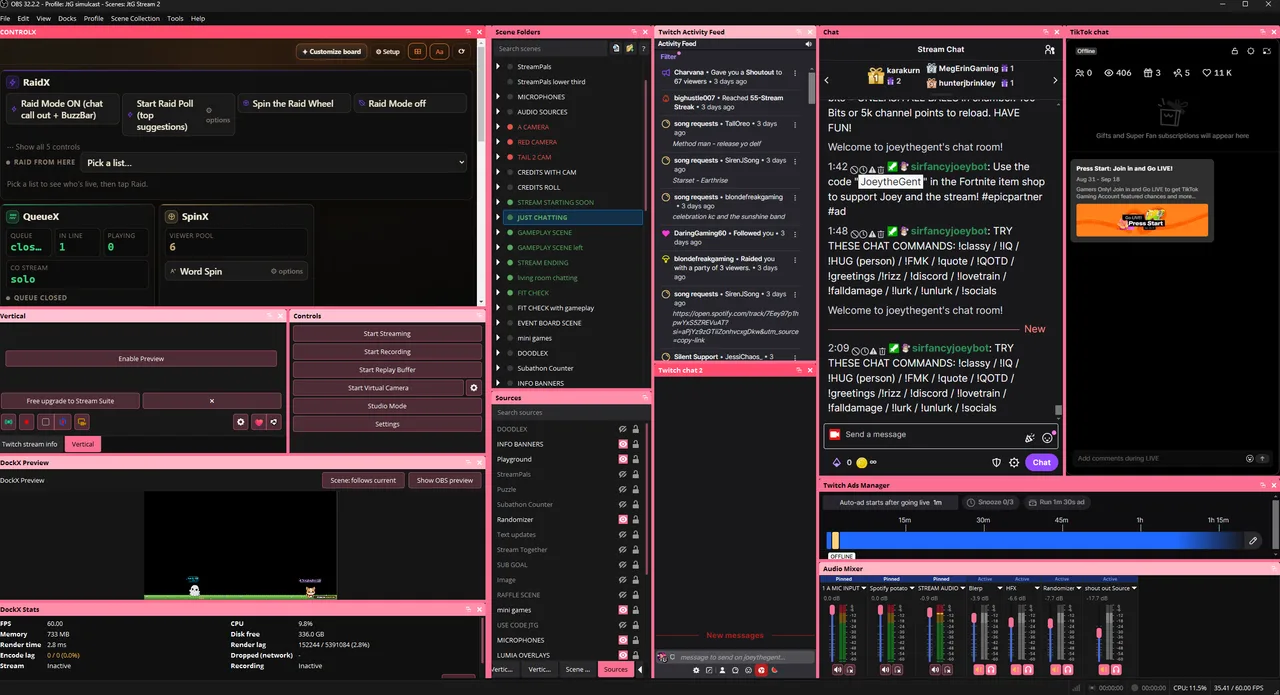
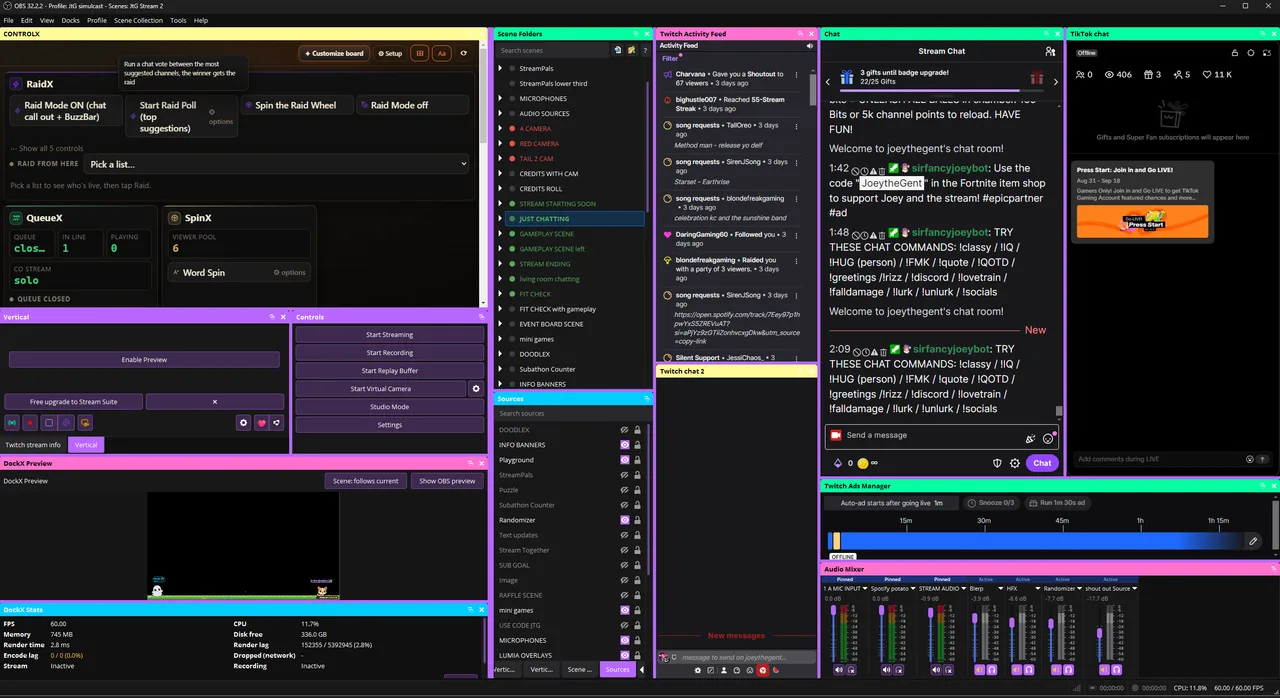
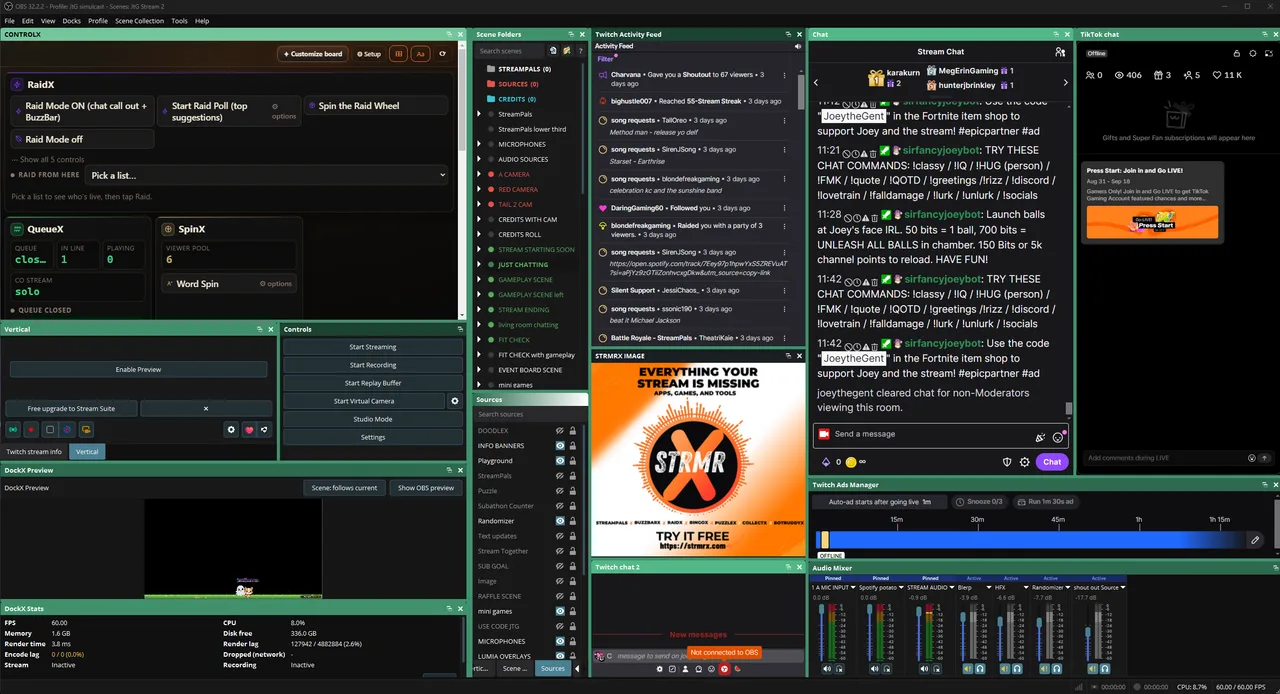
The same layout, wearing your brand
Recolor the whole window with a one click look, give each dock its own color, or tint OBS itself. Same panels, your palette.
A suite, not a plugin
Every upgrade OBS has needed for years
Flexible dock nesting
OBS docks live in rows, so you can't put a full height chat column next to a second column of stacked panels. DockX turns that on. Build the layout OBS never let you have.
DockX Preview
A live, editable canvas inside a dock. Select, move, resize, rotate and crop your sources right in a panel, with snapping and studio mode support. Then collapse the fixed preview so docks take the whole window.
Scene Folders
A collapsible, searchable folder tree over your scene list, with live thumbnails and a grid view that turns into a visual scene browser. Drag to organize, click to switch.
Saved layouts and hotkeys
Save any dock arrangement and bring it back with a hotkey, or let it switch automatically with the scene. Lock a layout so it never drifts mid stream, and revert in one click if it does.
Find any source
One search box scans every scene at once. Jump straight to a source, open its properties, and clean up orphaned sources that OBS itself can never show you.
Colors and theming
Recolor any dock, color code your scene names, or restyle all of OBS with one click looks. Make OBS match your brand instead of the other way around.
Source tags and bulk actions
Tag your sources, then show, hide, lock or mute a whole group across every scene at once. Wrangle a busy setup in a single click.
Align and distribute
Line up edges, space sources evenly, and center on canvas from a proper Align tab. Respects scale, crop and rotation, and never touches locked items.
Start in one click
Starter layouts
New to flexible docks? Pick a starting point and DockX arranges your docks for you. Every apply saves your old layout first, so you can undo it instantly.
Vertical Chat Focus
A tall chat column down one side, your preview top right, panels tiled beneath. The layout streamers keep asking OBS for.
Wide Preview
A big preview across the top with chat and your panels along the bottom. Great for a second monitor.
Compact
Preview on the left, chat and panels tabbed together on the right. Everything in reach on a single screen.
Bring outside apps in
Pin any window into your layout
Some windows can't live inside OBS: a TikTok Live Studio chat, a music player, a browser. DockX gives them a home anyway. A placeholder is an empty labeled dock that reserves their spot in any layout, and on Windows you can pin the real window over it.
It behaves like part of OBS
Right click a placeholder and choose Pin a window here. The pinned window sizes itself exactly over the placeholder and follows it through dock drags, layout switches and OBS restarts. It stacks with OBS like one of its own panels and hides when OBS minimizes. Switch to a layout without the placeholder and the window tucks itself away to the taskbar; bring the spot back and the window comes back with it. Turn on the seamless look to hide the window's own title bar so it reads as pure content. Unpin any time and everything is put back the way it was.
Sizing has one honest limit
DockX resizes the pinned window to fill its spot, but every app has a true minimum size that no plugin can override. If the window refuses to shrink, the placeholder learns that minimum and stops the dock from claiming space the window can't really fill, so your layout never lies. You can often go smaller by trimming what's inside the app itself (closing extra panels or options there); adding more can raise its minimum. If the app's minimum changes while pinned, DockX relearns it on its own within about 15 seconds, or right click the placeholder and choose Reset size limit to fix it instantly.
Apps that pull their panels back
Some apps, TikTok Live Studio included, pull a popped out chat back into their main window every time they restart. DockX remembers the exact window you pinned, by name, program and size, so it never grabs the app's main window by mistake: the spot simply shows Waiting until you pop the panel back out, then snaps it into place within a moment. It doesn't matter whether you open OBS or the app first. In the pin picker a panel and its app can share a name; the size on each row tells them apart, so pin the small one. And in the rare case an app shows two windows identical in name, program and size, DockX may grab the wrong one after a restart. The fix takes seconds: unpin, then pin the right window again.
Placeholders work everywhere DockX runs. Pinning itself is Windows only for now.
Free theme: StrmrX Midnight
A dark OBS theme tuned to sit next to DockX. Download it, then in OBS open Settings, Appearance, and import the theme file.
Two minutes
Getting started
- 1
Download DockX
Grab the free installer. It is a single small plugin file plus a language file.
- 2
Close OBS, run the installer
DockX drops into your OBS plugins folder. Run the installer as administrator so it can write there.
- 3
Open OBS, find DockX in Tools
Everything lives under the Tools menu and a Tools > DockX window. Drag a dock to an edge to split, to the center to tab.
First time with flexible docks? DockX opens an illustrated Dock Layout Guide on first run, and you can reopen it any time from the DockX window.
About the Windows security prompt
When you run the installer, Windows may show a blue "Windows protected your PC" box, and your antivirus may pause to scan it. That is normal for new software from a small publisher that has not paid for an expensive code signing certificate. It does not mean anything is wrong. DockX is open source, so you can read every line, and the installer only copies the plugin into your OBS folder. Click "More info" then "Run anyway" to continue.
On macOS or Linux?
DockX builds for macOS and Linux, but we have not been able to test it on those systems yet, so consider those builds experimental. If you want to try one anyway, grab the .pkg (macOS) or .deb (Ubuntu) from the release page and tell us what worked and what did not. We would love the feedback. Pinning outside apps stays Windows only.
Nothing to fear
Uninstall and revert
DockX is built to be fully reversible. It never edits OBS's core install, never touches your video files or images, and everything it does write can be undone.
Its whole footprint is three files
- The plugin itself, in your OBS plugins folder (a small
.dllplus a language file). - One settings file that holds your layouts, hotkeys and options, written safely so a crash can't corrupt it.
- Your dock arrangement, saved through OBS's own dock store. DockX keeps no private copy of your window layout.
No registry keys, no files anywhere else, no changes to OBS beyond the plugin file.
Usually you don't need to remove anything
If a layout ever looks wrong, the DockX menu has your escape hatches: Revert dock layout snaps back to your saved point, Rescue docks to this screen pulls a stray dock back onto your monitor, and Show or hide OBS preview brings the built in preview back. And if any plugin ever stopped OBS from starting, OBS offers Safe Mode automatically, which boots with all third party plugins off, so you're never locked out.
Full clean uninstall
Close OBS, then run the included uninstaller (or delete the plugin file and its language folder by hand). That's it. Keep the settings file to restore your layouts on a reinstall, or delete it too for a completely blank slate. Your scenes, sources and media are untouched. The only thing DockX ever changes in your project is scene item positions in the DockX Preview, exactly like editing in OBS's own canvas, and just as reversible.
Free to use, not free to build
DockX is free with every feature unlocked, and it stays that way. It is built and kept alive by StrmrX, a tiny team. If DockX earns a spot in your setup, a tip on Ko-fi is what keeps the updates coming. No pressure, and nothing is ever locked behind it.
Part of StrmrX
The plugin is free. Forever.
DockX is StrmrX's first native plugin, and it stays free with every feature unlocked. It's the front door to a family of tools built by streamers, for streamers. The extras we're building next live in your StrmrX account: sync your layouts across machines, share layouts with other streamers, and back up your whole OBS setup so you can restore it anywhere.