StrmrX blog
7 Twitch Stream Tools Just Chatting Streamers Need to Cut Dead Air 50%
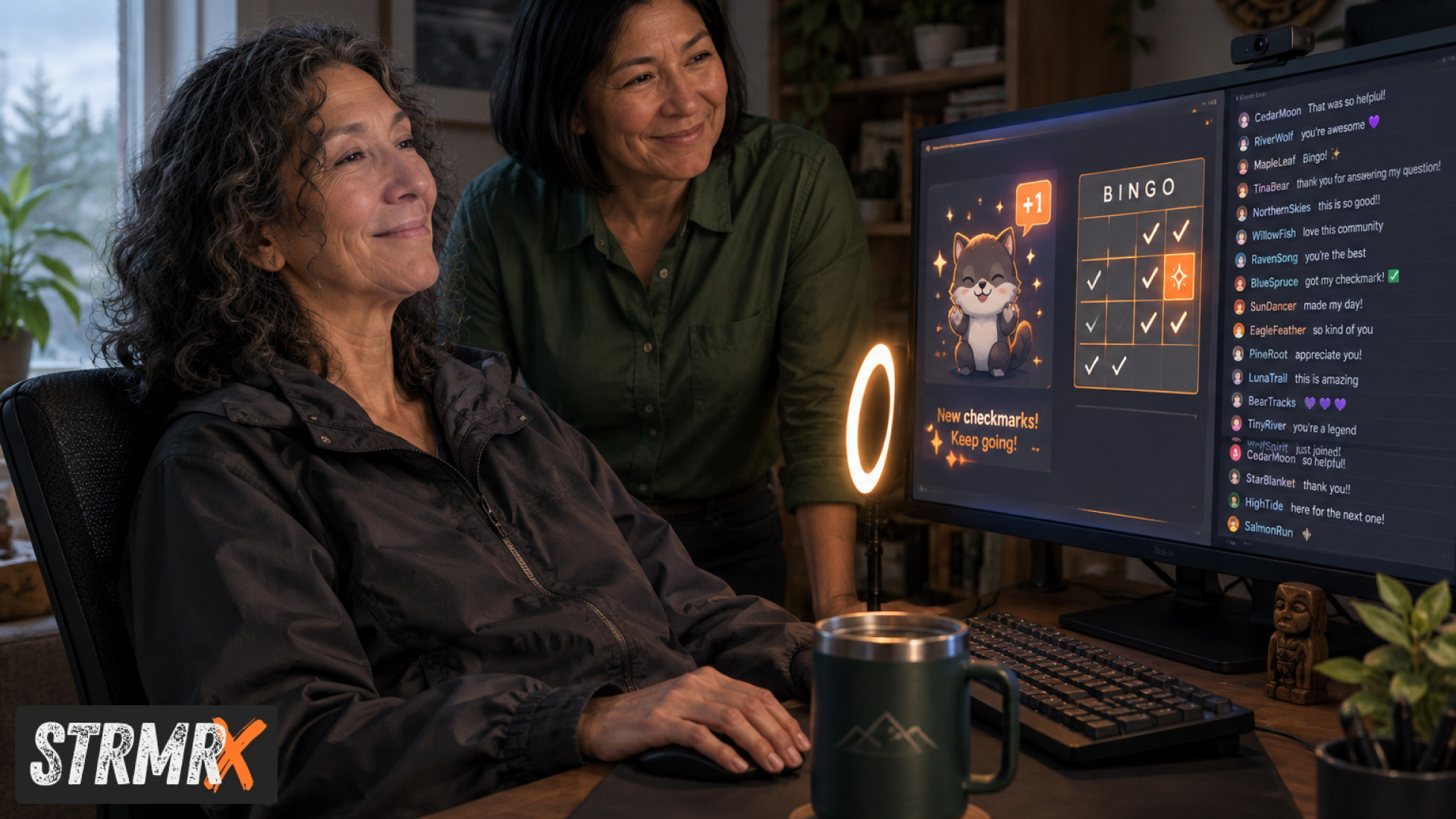
Dead air drops fastest when viewers have something to do besides watch and wait, and the quickest way to give them that is a set of lightweight twitch stream tools that turn chat into an active participant instead of a scrolling sidebar. StrmrX builds exactly that: seven free browser-based apps, collectively called the StreamKit, that drop into OBS or Streamlabs Desktop as a browser source with nothing to install. Below are the seven tools Just Chatting streamers use to keep chat busy, talking and coming back, and why each one earns its slot in a stream that can't afford long silences.
Why Dead Air Is a Bigger Problem for Just Chatting Streamers
Dead air hurts Just Chatting streams more than gameplay streams because there's no game filling the screen while the streamer thinks of what to say next. Viewers on a gameplay stream still have action to watch during a lull; a Just Chatting stream has only the streamer's face and whatever chat is doing, so a 20 second pause can feel like a minute.
The fix isn't talking faster, it's giving chat a persistent task that runs in the background of the conversation. A bingo card to tick, a pet to feed, a puzzle to poke at: these keep hands typing even when the mic goes quiet, which is the entire logic behind the tools below.
1. BingoX for Chat-Wide Bingo That Runs Itself
BingoX turns chat into a live bingo hall where viewers type !join to get a card and you call the balls from an overlay in OBS.
It works because it doesn't need the streamer to narrate constantly; chat is busy reading its card and shouting when it gets close, which fills exactly the kind of quiet stretch that normally turns into dead air. Set it running at the top of a Just Chatting segment and check back every few minutes to call numbers between topics. Because it's a browser source with nothing to install, it's live in under a minute the first time you add it, and every StrmrX app signs in with the same free account, so there's no second login to manage.
2. CollectX for a Shared Collection Chat Checks Off Together
CollectX gives chat a collection grid that fills in live as viewers find or earn items during the stream, so there's always a shared goal to track between topics.
Instead of chat sitting silent, people are calling out what's left on the grid or celebrating when a square gets ticked, which naturally restarts conversation after a quiet beat. It pairs well with a recurring Just Chatting format, a weekly theme, or a running joke you want chat to build toward over several streams rather than one. Like the rest of the StreamKit, it's free on the A tier and runs straight from a browser source, no separate install or account.
3. StreamPals for a Chibi Pet the Whole Stream Looks After
StreamPals puts a chibi pet on screen that chat feeds, waters and plays with, giving viewers a low-effort reason to type something every few minutes instead of going quiet.
A pet that needs attention is one of the easiest dead-air fixes there is because it doesn't require a prompt from the streamer; chat checks in on it unprompted. It's a good fit for longer Just Chatting sessions where you want a background activity that doesn't compete for attention with the actual conversation. The overlay sits quietly in a corner of the frame and updates itself as chat interacts, so there's nothing to manage mid-stream.
4. BotBuddyX for an AI Chatbot That Keeps Chat Answered
BotBuddyX is an AI chatbot that answers questions and runs commands in chat, so viewers get a response even when the streamer is mid-thought or stepped away for a second.
A lot of dead air isn't silence from the streamer, it's a backlog of unanswered questions piling up in chat while the conversation moves on. BotBuddyX clears that backlog automatically, handling repeat questions like "what game is this" or custom commands you've set up, which keeps chat feeling attended to between your own replies. For streamers comparing best twitch stream tools for chat moderation and engagement side by side, this is the one that covers both jobs without a second dashboard.
5. PuzzleX for a Real-Time Puzzle Chat Solves Together
PuzzleX is a real-time puzzle that chat solves collaboratively on stream, or that a smaller group can work through at a private table, giving viewers a shared problem to chew on during quiet stretches.
Puzzles are particularly good at absorbing the kind of silence that happens when a streamer is eating, setting something up, or just taking a breather, because the puzzle keeps running and chat keeps discussing strategy without needing the streamer to drive it. It also gives mobile viewers something to engage with directly in chat text, which matters since not every viewer is on a desktop where more elaborate interactions are practical. Streamers researching twitch stream tools reddit threads will see puzzle and trivia formats come up constantly as a dead-air fix precisely for this reason.
6. BuzzBarX for an On-Screen Card That Keeps Working When You're Not
BuzzBarX is an on-screen card that rotates your socials, commands and house rules, and swells for hype trains, raids and follows, so the stream keeps communicating even during a lull in talking.
A lot of perceived dead air is really just the stream feeling static: nothing on screen is changing, so even active viewers start to drift. BuzzBarX solves that by rotating fresh information automatically and reacting visually to follows, raids and hype trains the moment they happen, which gives new viewers something to read and existing viewers a reason to look back at the screen. It's a smaller, lighter alternative to the bulkier alert widgets bundled into heavier all-in-one dashboards from larger platforms, which fits how StrmrX builds: small, fast tools instead of one heavy control panel.
7. RaidX for Ending the Stream Without a Dead Finish
RaidX finds live channels that match your stream by size, game and camera type, lets you raid in one click, and remembers who raided you back, so the last minutes of a stream don't trail off into silence.
The end of a Just Chatting stream is one of the highest-risk spots for dead air, because the streamer is winding down and chat can sense it. RaidX removes the awkward "let me find someone to raid" scramble by surfacing a matched channel instantly, so the stream closes on momentum instead of a flat goodbye. Remembering who raided you back also makes it easier to build reciprocal raid relationships with similarly sized streamers over time, which matters most for streamers in the 5 to 500 average viewer range where every raid is a meaningful audience swap.
How These Twitch Stream Tools Work Together
These seven tools work together because they all run through the same free StrmrX account and the same shared credit wallet, so adding a second or third app doesn't mean a second login or a separate subscription to track.
All seven apps, BingoX, CollectX, StreamPals, BotBuddyX, PuzzleX, BuzzBarX and RaidX, are free today on the A tier. Streamers who want premium resources, priority features and early access can move to S Tier at 9 dollars a month, and streamers who want the full StreamKit unlocked with VIP support can move to X Tier at 19 dollars a month. Because every app is a browser source rather than a native Twitch Extension, there's also no viewer-side install required: chat interacts entirely through commands typed in the normal Twitch chat box, which works the same whether a viewer is watching on desktop, mobile or console, unlike extensions tied to panels that console viewers often can't see.
Conclusion
Cutting dead air on a Just Chatting stream comes down to giving chat a job, and these seven twitch stream tools, BingoX, CollectX, StreamPals, BotBuddyX, PuzzleX, BuzzBarX and RaidX, each give chat a different kind of job to do between topics. Built by a two-person independent studio of streamers, the whole StreamKit is designed to be small, fast and low-friction rather than one heavy dashboard to configure.
Create one free account at strmrx.com to sign into all seven apps with a shared credit wallet, or email vibe@strmrx.com with questions before adding your first overlay to OBS.
Frequently Asked Questions
What's the difference between A tier, S tier and X tier on StrmrX?
A tier is the free plan that already includes all seven StreamKit apps: BingoX, CollectX, StreamPals, BotBuddyX, PuzzleX, BuzzBarX and RaidX. S Tier runs 9 dollars a month and adds premium resources, priority features and early access, while X Tier at 19 dollars a month unlocks the full StreamKit plus VIP support. You can run a Just Chatting stream entirely on the free tier and only upgrade if you want the extras.
Do viewers need to install anything to use BingoX, PuzzleX or the other StreamKit apps?
No. Every StreamKit app runs as a browser source on your end and viewers interact purely by typing commands in the normal Twitch chat box. That means it works the same on desktop, mobile or console, unlike native Twitch Extensions that rely on panels console viewers often can't even see.
How is BotBuddyX different from using a separate moderation bot and a separate FAQ bot?
BotBuddyX combines both jobs in one tool: it answers repeat questions like "what game is this" and runs custom commands while also handling chat moderation, so you're not juggling two dashboards. Since it shares login and credits with the rest of the StreamKit, there's no second setup process to maintain alongside BingoX or PuzzleX.
How do I actually add BingoX or the other tools to OBS or Streamlabs?
Each StreamKit app drops in as a standard browser source, so you create one free StrmrX account, grab the app's URL, and paste it into a new browser source in OBS or Streamlabs Desktop. There's nothing to download or install, and the post notes it's live in under a minute the first time you set it up.
Can I run BingoX, StreamPals and RaidX all at the same time without separate logins?
Yes. All seven StreamKit apps sign in through the same free StrmrX account and pull from one shared credit wallet, so stacking multiple tools in a single stream doesn't mean managing multiple subscriptions or passwords. This is the setup the post recommends for Just Chatting streams: run a few tools in parallel so chat always has something active to do, like a bingo card from BingoX while a pet from StreamPals sits in the corner of the frame.