StrmrX blog
What Happens When Streamers Try Layered Scene Switching: Where Twitch Overlays for OBS Are Headed
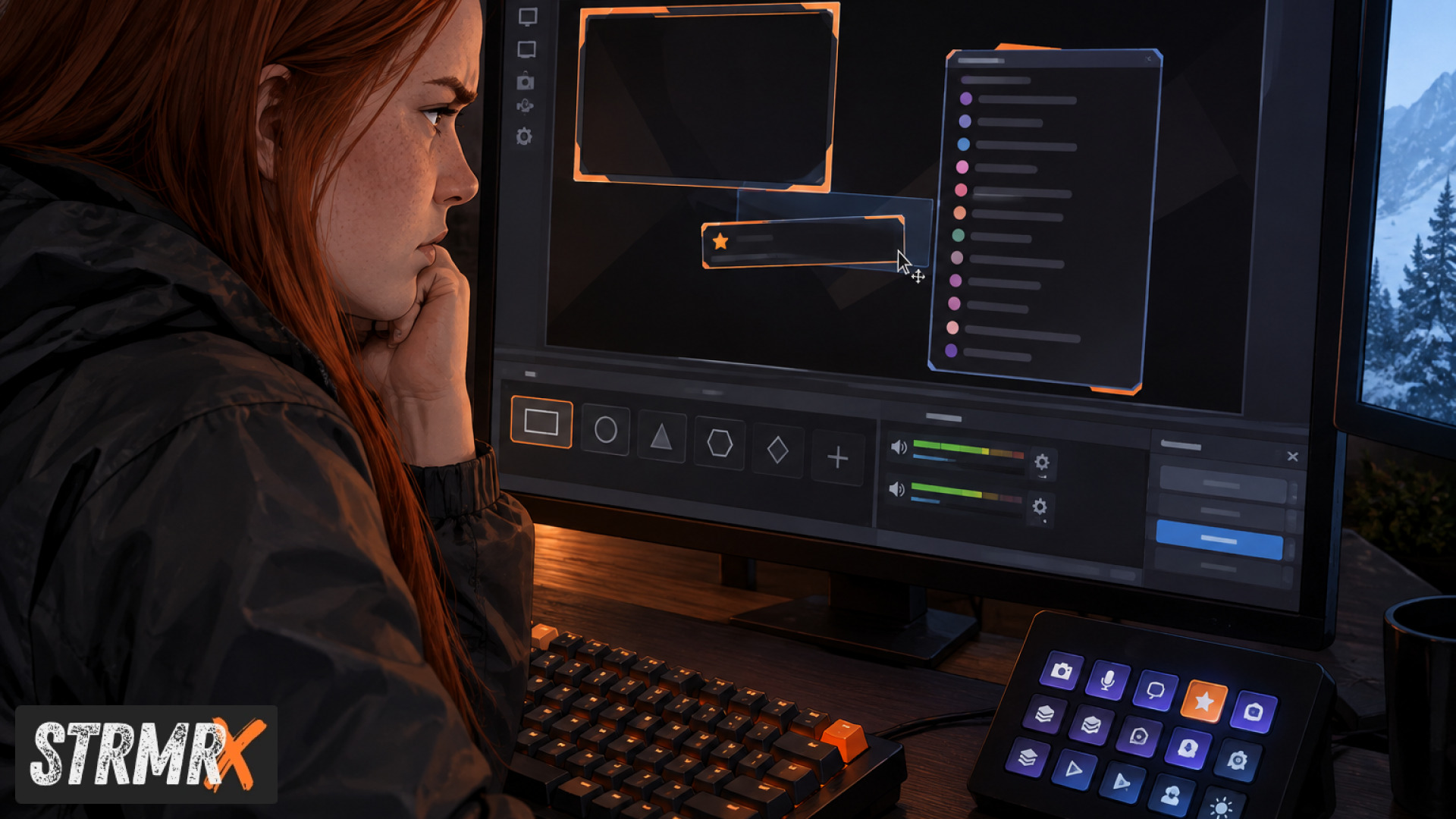
Layered scene switching is when streamers stack multiple overlay elements (webcam frame, alert box, chat widget, static PNG decorations) across different OBS scenes and try to keep them all lined up as they switch between "Just Chatting," "Gameplay," and "Starting Soon." In practice, most streamers find the layers drift, overlap, or just stop working the moment a scene changes, which is why so many searches for twitch overlays for obs end with someone rebuilding their whole scene collection from scratch. The good news is that the fix isn't more layers, it's fewer of them, done right.
The Problem: What Goes Wrong When You Layer Scenes in OBS
The core problem is that static image layers don't know what scene they're in, so every time you switch scenes you're manually re-positioning, re-sizing, or re-adding the same overlay elements. A webcam border that looked perfect in "Gameplay" shifts two pixels in "Just Chatting." An alert box duplicated across five scenes updates in one and not the others. A chat box pinned as a separate browser source loses its position the moment you resize the canvas.
This happens because most overlay packs are built as flat, non-interactive image or video files meant to sit in one spot. They weren't built for streamers who run three, five, or ten scenes and switch between them dozens of times an hour. Add a second monitor, a new game capture source, or a guest webcam, and the whole stack has to be rebuilt again.
The impact isn't cosmetic. Viewers notice broken layouts fast, and a stream that looks like it's held together with duct tape loses trust in the first ten seconds. New streamers especially burn hours in OBS settings fixing layering instead of streaming, which is exactly the frustration behind most "free twitch overlays for obs" searches: people aren't looking for more assets, they're looking for assets that don't break.
Why a Single Browser Source Beats a Stack of Layers
The direct fix is to replace multiple static image layers with one browser source that updates itself live, so there's nothing to re-align when you switch scenes. This is the whole idea behind the StreamKit from StrmrX: every app, from BuzzBarX to StreamPals, runs as a single browser source you drop into OBS once per scene, and it behaves the same way every time because it's rendering live, not sitting as a fixed image.
BuzzBarX is a good example. It's a single on-screen card that rotates through your socials, commands, and house rules, and automatically swells when a hype train starts, a raid lands, or someone follows. Instead of layering a static "follow me" graphic, a separate alert box, and a rules panel across five different scenes, you add BuzzBarX once as a browser source and it handles all three jobs in the same spot, every scene, every time.
The outcome is fewer sources to manage and nothing to re-nudge when you switch from "Gameplay" to "Starting Soon." That's the real difference between an overlay that's a picture and an overlay that's a program.
How Do Interactive Overlays Handle Scene Switching Better Than Static Ones?
Interactive overlays handle scene switching better because they're driven by a live connection to chat and Twitch events rather than a fixed file, so the content inside the box changes without you ever touching the layer itself. A static PNG needs manual updates. A browser source tied to chat updates on its own, in the same position, no matter which scene it's sitting in.
BingoX is a clear case: viewers type !join in chat to get a card, you call the balls, and the whole grid lives inside one browser source. CollectX works the same way, with a collection grid chat ticks off together as the stream runs. Neither needs to be rebuilt per scene because the logic lives in the app, not in the layer stack.
StreamPals takes this further with a chibi pet the whole stream feeds, waters, and plays with between segments, giving viewers something to do during "Starting Soon" or "Be Right Back" scenes without adding a second overlay just for downtime. The result is one overlay that earns its place in every scene instead of five static ones that only work in one.
What About Puzzle and Chatbot Overlays That Need Real-Time Input?
Overlays that take real-time viewer input need to stay perfectly in sync across every scene switch, and the way to do that is to keep the logic server-side instead of baked into the image. PuzzleX is a real-time puzzle chat solves together, either on stream or at a private table, and because the puzzle state lives on StrmrX's side rather than in a local file, it looks identical whether you're mid-gameplay or sitting in an intermission scene.
BotBuddyX, the AI chatbot that answers chat and runs commands, works the same way behind the scenes even when it isn't shown as a visible overlay element. It keeps responding and running commands regardless of which scene is active, because it isn't tied to a layer at all, it's tied to the channel.
For streamers juggling raids, RaidX adds another layer of automation without adding another graphic: it finds live channels that fit your stream by size, game, and camera type, raids in one click, and remembers who raided you back, all without needing a dedicated overlay slot in every scene.
Where Are Twitch Overlays for OBS Headed Next?
Twitch overlays for OBS are moving away from static, download-and-drag-in image packs and toward lightweight browser sources that carry their own logic, so the overlay behaves the same no matter how many scenes a streamer runs. That shift answers the real demand behind searches like "OBS animated overlays free" or "free animated stream overlays for Streamlabs": streamers aren't chasing prettier PNGs, they're chasing overlays that don't need babysitting.
That's the direction StrmrX has built toward from day one. There's nothing to install: every app drops into OBS (or Streamlabs Desktop) as a browser source, and one free StrmrX account signs you into all seven apps with a single shared credit wallet. Instead of downloading seven separate overlay files and wiring up seven separate layers, you add a browser source once and it stays consistent across every scene you build afterward.
As a two-person independent studio built by streamers for streamers, StrmrX has deliberately kept each app small and fast rather than building one heavy all-in-one dashboard, which is part of why the overlays hold up under scene switching: less code per app means less to break when OBS resizes or reloads a source.
What Do You Actually Get with Free Twitch Overlays from StrmrX?
All seven StrmrX apps, BingoX, CollectX, StreamPals, BotBuddyX, PuzzleX, BuzzBarX, and RaidX, are free to use today on the A tier, with no download required and no per-app install. That covers chat games, a chatbot, a collection tracker, a pet overlay, a social and hype card, and a raid finder, all signed in through one account.
Streamers who want more headroom can move to S Tier at $9 a month for premium resources, priority features, and early access, or X Tier at $19 a month for the full StreamKit with every app unlocked plus VIP support. Neither tier changes how the overlays sit in OBS; they still run as the same browser sources, just with more behind them.
The practical outcome for anyone searching "free OBS overlays" or "free twitch overlays for obs download" is that there's no file to find or install: you add a browser source URL once per app, and it's ready across every scene from the first stream onward.
Conclusion: From Rebuilding Layers to Streaming
Before, layered scene switching meant rebuilding overlay positions every time a scene changed, chasing down which static image belonged where, and hoping nothing drifted mid-stream. After switching to browser-source overlays that carry their own logic, like the seven apps in the StrmrX StreamKit, a streamer drops in one source per app and it holds its place across every scene without manual fixing. That's the shift behind where twitch overlays for obs are headed: fewer static layers, more overlays that actually run themselves.
If scene switching has been breaking your overlay setup, start with one free StrmrX account and add BuzzBarX, BingoX, or StreamPals to a single OBS scene to see how it holds up across the rest of your layout. Visit strmrx.com to sign up free on A Tier, or reach the team directly at vibe@strmrx.com with questions about moving your current overlay stack over. Learn. Stream. Vibe.
Frequently Asked Questions
What exactly counts as a "browser source" versus the old static overlay files?
A browser source is a live, self-updating piece of web content you point OBS to, instead of a fixed image or video file sitting in a folder. Because it renders in real time, it can react to chat, follows, and hype trains on its own, which is why it doesn't need to be re-added or re-aligned every time you switch between scenes like "Gameplay" and "Starting Soon."
How do I add BuzzBarX to an existing OBS scene collection without redoing my whole layout?
You add BuzzBarX once as a browser source in a single scene, and since it's rendering live rather than sitting as a fixed image, it holds its position when you copy that same source into your other scenes. There's no file to download first, so you're not hunting for assets or re-sizing a PNG every time you duplicate it across "Just Chatting," "Gameplay," or an intermission scene.
Why would a single app like StreamPals replace several separate overlay elements instead of just adding another layer?
Static setups often stack a webcam border, a follow graphic, and a rules panel as three separate layers that each need manual repositioning per scene. StreamPals (and BuzzBarX, similarly) combines several of those jobs, like hype alerts, social info, and downtime engagement, into one browser source, so there's one thing to place instead of three things to keep lined up.
Do I need to pay for S Tier or X Tier to get overlays that don't break during scene switches?
No, all seven apps, including BuzzBarX, BingoX, and StreamPals, run as the same browser sources on the free A Tier, and that's what keeps them stable across scene switches regardless of price tier. S Tier ($9/month) and X Tier ($19/month) add premium resources, priority features, and full app access, but they don't change how the overlay behaves inside OBS.
What happens to BotBuddyX or RaidX when they're not visibly displayed in a scene at all?
BotBuddyX keeps answering chat and running commands even when it isn't shown as an on-screen overlay, because it's tied to your channel rather than to a specific layer or scene. RaidX works the same way in the background, finding and executing raids without needing a dedicated graphic or overlay slot anywhere in your scene collection.