StrmrX blog
5 Tips Screen Tweaks That Cut Missed Donations by 30%
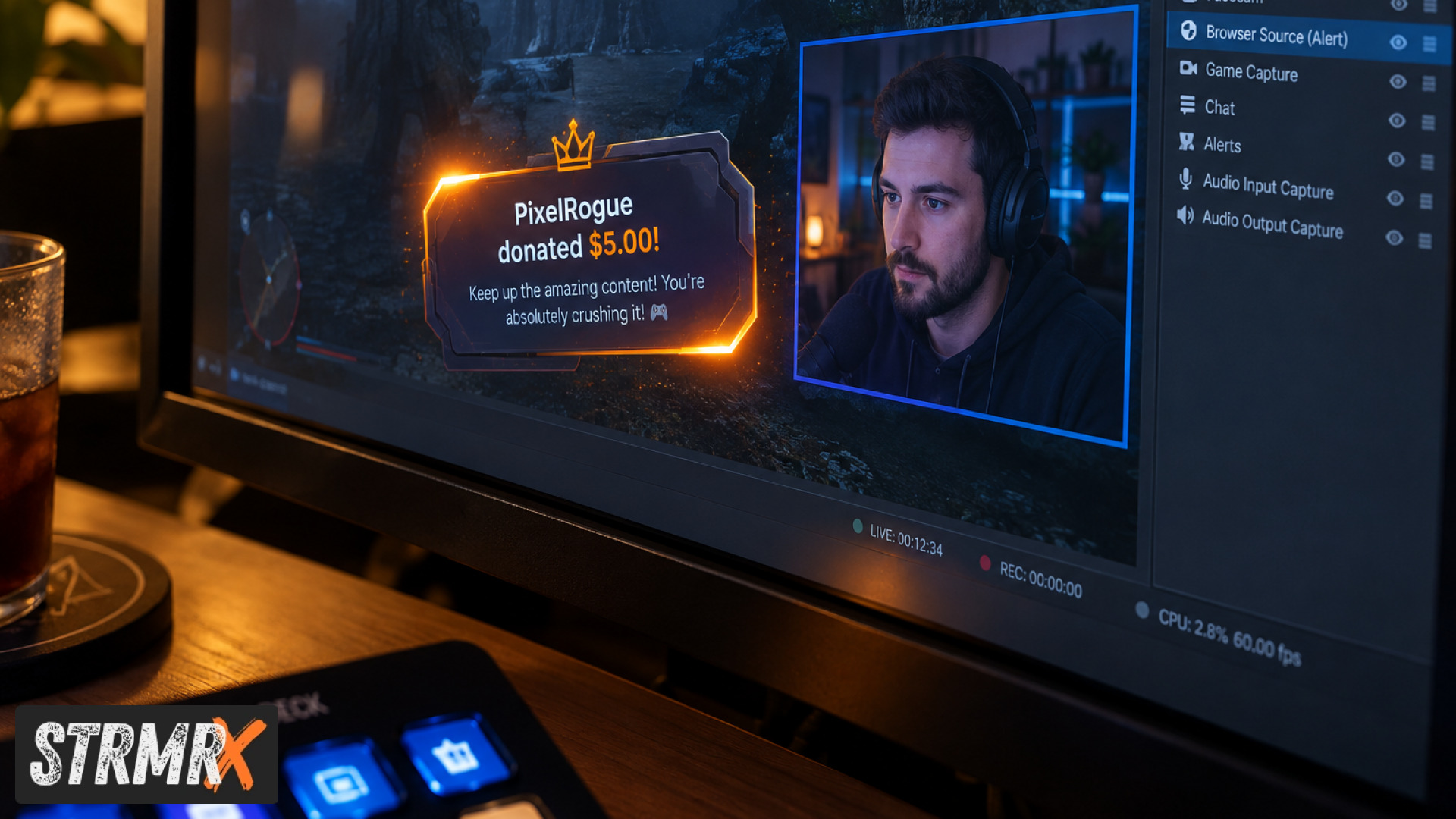
A tips screen only stops costing you money when three things are true: it sits somewhere chat is already looking, it still reads clearly at stream resolution, and it keeps working when you switch scenes mid-raid. Get those three right and the usual culprits behind a missed donation, a viewer who tipped but never got seen, a wrong-size overlay, a dead browser source after a scene change, mostly disappear. Below are five tips screen tweaks (plus two bonus setup moves) that streamers running lean, browser-based overlays like the ones in the StrmrX StreamKit use to stop donations from slipping through the cracks.
1. Put Your Tips Screen Where Chat Already Looks
The single biggest fix for a missed donation is moving the tips screen into the zone viewers actually look at, which on most layouts is the lower third or a strip beside the facecam, not a far corner.
Eye-tracking habits on stream are predictable: viewers glance at the game, then the facecam, then whatever sits directly next to it. A tips screen tucked into an empty top corner gets seen by almost nobody, which means a $5 tip can trigger and vanish before the streamer or chat ever notices it happened. Move it adjacent to the cam or chat box instead, and keep its footprint consistent across every scene in OBS so it never jumps position mid-raid. If you run a second on-screen element for socials or hype moments, like BuzzBarX, keep both anchored to the same corner cluster so a viewer's eye only has one place to check.
2. Test With a Fake Tips Screen Before You Go Live
Yes, testing with a fake tips screen, a dummy alert that fires a sample donation without a real transaction, is the fastest way to catch layout problems before a real tip gets lost in them.
Plenty of streamers skip this step and only find out their tips screen clips off text, overlaps the webcam, or fires silently under game audio once a real tip has already gone unseen. A quick test alert run through OBS five minutes before going live shows you exactly how the on-screen card behaves at full size, whether it swells the way you expect during a hype moment, and whether the font is readable against your current game's palette. Because browser-source overlays like the ones in the StrmrX family drop straight into OBS with nothing to install, running a test loop costs you nothing but a few minutes, no separate test environment, no app to download first.
3. Keep the Tips Screen Visible in Full Screen Capture
A tips screen only works if it still reads clearly once your capture is scaled to full screen, which means checking it at 1080p and at whatever resolution your actual stream output uses, not just your editor preview.
It is common for an overlay that looks perfect in the OBS source window to shrink into an unreadable sliver once it is composited into a 1920x1080 or 1280x720 output and compressed for Twitch's stream. Text that is 14px in the editor can become genuinely illegible at viewer-side resolution, especially for mobile viewers watching on a smaller screen. Preview your layout at the actual output resolution before your first scene change, not after a viewer mentions they couldn't read it in chat. If your tips screen sits inside a browser source, resizing the source box rather than scaling the whole canvas keeps text crisp instead of blurry.
4. Pair the Tips Screen With an Always-On Prompt
A tips screen catches the moment a donation fires, but an always-on prompt is what reminds a viewer the option exists in the first place, so pairing the two closes the gap between "didn't know" and "forgot."
BuzzBarX, the on-screen card in the StrmrX StreamKit, rotates through socials, commands and house rules on a loop and swells for hype trains, raids and follows, which keeps the corner of the screen active instead of static for ten minutes at a time. A viewer who has been watching for twenty minutes and sees that corner move is far more likely to notice a new alert the moment it appears than a viewer staring at a layout that hasn't changed since the stream started. Running a rotating prompt next to your tips screen, rather than a tips screen sitting alone in dead space, is one of the simplest ways to make sure a donation actually registers with the room.
5. Make the Tips Screen Work on a Phone, Too
A meaningful share of Twitch viewers watch on a phone, so a tips screen that only looks right on a desktop monitor is quietly failing a chunk of your audience before a donation alert ever fires.
Checking your tips screen for phone viewing is simple: pull up your own stream on a phone browser while live-testing, or screenshot your OBS output and view it at a phone's aspect ratio, and look specifically at font size and card width. Elements that are comfortably readable at 1080p on a 27-inch monitor often shrink below a legible size on a 6-inch screen, which matters because a donation alert nobody can read is functionally the same as a missed one. If you're choosing between a native app and a browser-based tool for your overlay, browser-based wins here too, since a browser source scales to the output resolution automatically rather than locking to a fixed app window size.
6. Choose a Browser-Based Tips Screen Over an App Download
Skip the standalone app and run your tips screen as a browser source instead, because a browser-based overlay updates instantly, needs no install, and works the same whether you're on a gaming PC or a laptop you borrowed for the night.
Searching for "tips screen download" or a dedicated "tip screen app" usually turns up tools that need a separate installer, their own update cycle, and sometimes their own login, which is one more thing to maintain on top of OBS, your capture card drivers and your stream deck profiles. The StrmrX StreamKit takes the opposite approach on purpose: all seven public apps, BingoX, CollectX, StreamPals, BotBuddyX, PuzzleX, BuzzBarX and RaidX, run entirely in the browser and drop into OBS as a browser source, with one free account and one shared credit wallet signing you into every app in the family. Every app is free on the A tier today, so testing a browser-based overlay setup against an app-based one costs nothing but ten minutes of your time.
7. Let Chat Commands Remind Viewers the Tips Screen Exists
A chat command that answers "how do I tip?" in real time does more for donation visibility than any amount of overlay tweaking, because it meets a viewer at the exact second they're asking the question.
New viewers rarely scroll an on-screen card for ten seconds before deciding to tip; they ask chat, and if nobody answers fast, the moment passes. BotBuddyX, the AI chatbot in the StrmrX StreamKit, answers chat and runs commands automatically, so a simple !tip or !support command can surface the same information your tips screen is displaying without a moderator needing to type it out every time. Pairing a chat command with the on-screen card means the answer exists in two places at once, which matters most during busy raids when chat is moving too fast for anyone to scroll back and find a pinned message.
Why a Low-Friction Setup Matters More Than a Fancier Tips Screen
A more complicated tips screen rarely fixes a missed donation; a simpler setup that loads reliably every time you go live does.
Streamers running five, six or more overlay elements at once, alerts, a chat box, goal bars, a tips screen, a pet widget, often find the real failure point isn't design, it's one element silently failing to load after a scene switch because it depends on a heavier dashboard behind it. StrmrX was built by a two-person studio of streamers who hit that exact problem themselves, which is why the StreamKit is deliberately seven small, fast apps instead of one all-in-one dashboard: if BuzzBarX needs a refresh, it doesn't take your tips screen or your chatbot down with it. For a 5-viewer streamer setting up a first overlay and a 500-viewer streamer running a packed scene collection alike, that separation is what keeps a donation alert firing reliably every single time, not just most of the time.
Conclusion
A tips screen that sits in chat's eyeline, reads clearly at full screen and on a phone, and loads the same way every single stream is what actually turns a missed donation into a seen one, and most of the fixes above cost nothing but a few minutes of testing before you go live. Start with positioning and a quick fake tips screen test, then layer in a rotating prompt and a chat command so the same message reaches a viewer twice. If you want to try a browser-based setup that skips the install entirely, the full StreamKit, BingoX, CollectX, StreamPals, BotBuddyX, PuzzleX, BuzzBarX and RaidX, is free on the A tier at strmrx.com, with S Tier at $9 a month and X Tier at $19 a month for streamers who want every app unlocked plus VIP support. Questions about setting any of it up? Reach the StrmrX team at vibe@strmrx.com.
Frequently Asked Questions
How do I set up a fake tips screen test in OBS before going live?
Fire a dummy donation alert through your alert tool so it triggers the same on-screen card a real tip would, then watch it play out in OBS a few minutes before you go live. Check whether text clips, whether it overlaps your webcam, and whether it's still audible under game sound, since all three are easier to fix before a real viewer's tip gets lost in them.
What's the difference between a tips screen and an always-on prompt like BuzzBarX?
A tips screen fires when a donation actually happens, while an always-on prompt like BuzzBarX stays active the whole stream, rotating through socials, commands and house rules so that corner of the screen never goes static. The post pairs the two on purpose: the prompt reminds a viewer tipping is an option, and the tips screen confirms it the moment someone does.
Why would a browser-based tips screen be better than downloading a tip screen app?
A browser-source overlay like the ones in the StrmrX StreamKit scales automatically to your output resolution, needs no installer, and works the same on any PC you're streaming from that day. App-based tools usually come with their own installer, update cycle, and login, which is one more thing to maintain alongside OBS, capture card drivers, and stream deck profiles.
How much does it cost to try the full StrmrX StreamKit mentioned in this post?
All seven apps, including BuzzBarX and BotBuddyX, are free on the A tier at strmrx.com, with one account and one shared credit wallet covering every app. S Tier runs $9 a month and X Tier is $19 a month if you want every app unlocked plus VIP support.
What happens to my other overlay elements if one app like BuzzBarX needs a refresh?
Nothing, by design. The StreamKit is built as seven small, separate apps instead of one all-in-one dashboard, so a refresh on BuzzBarX won't take your tips screen or BotBuddyX chatbot down with it, unlike heavier dashboards where one failing element can silently break the rest of your layout mid-stream.