StrmrX blog
Raid Incoming? How One Streamer Set Up a Timer Overlay in Minutes
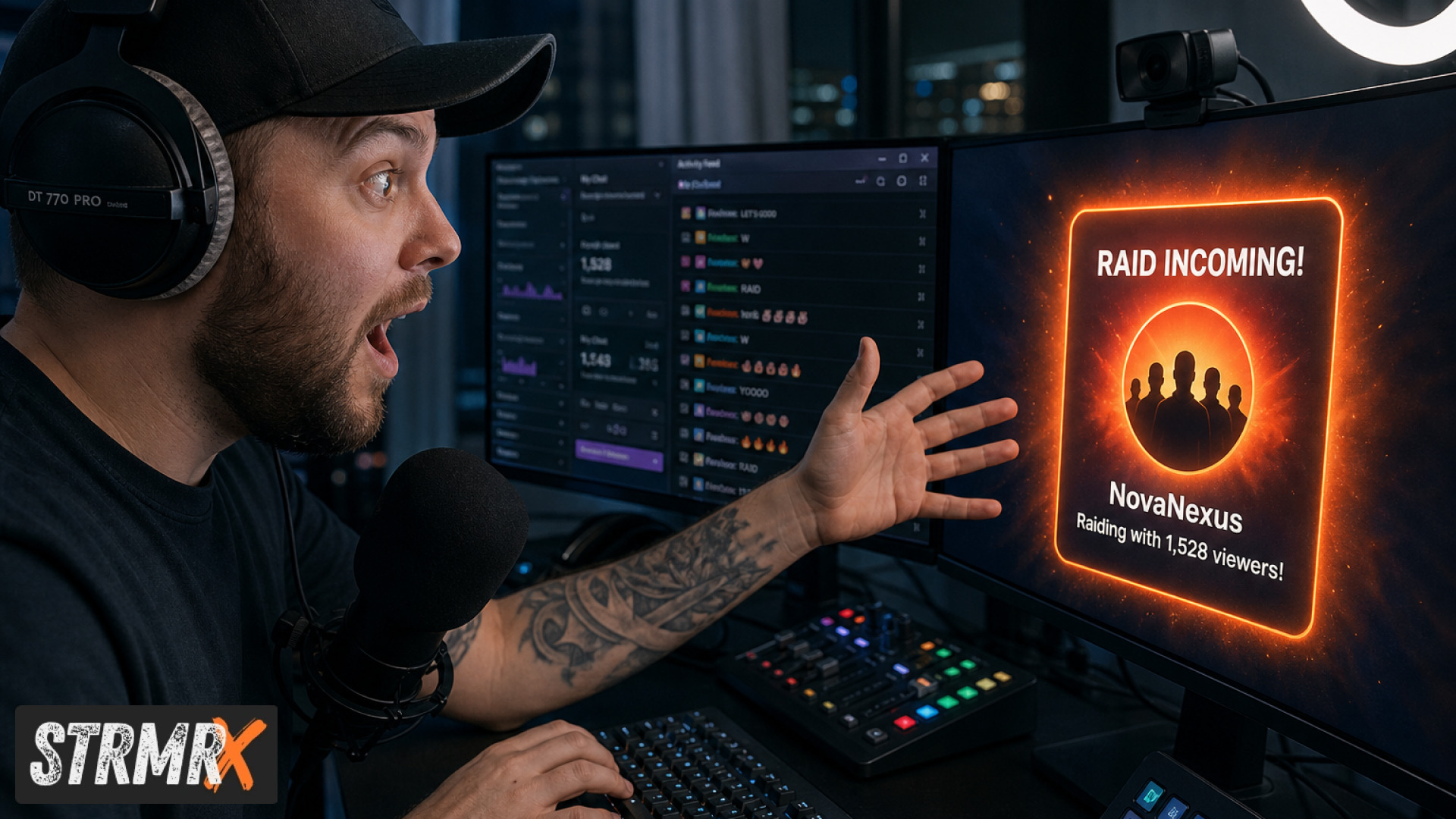
A timer overlay is a browser-source graphic in OBS or Streamlabs Desktop that counts down or reacts to a live event, like an incoming raid, so viewers know something is about to happen without the streamer having to say it out loud. The fastest way to get one running is to skip a standalone countdown widget entirely and use an overlay that already reacts to raids on its own, which is exactly what one small streamer did in under five minutes using BuzzBarX from StrmrX.
If you've ever been mid-sentence when a raid train rolls in and scrambled to find your countdown app, resize it, and hope it doesn't clip through your webcam, you already know how much friction a "simple" timer overlay can add to a stream. It shouldn't take a second monitor and three browser tabs just to tell your chat a raid is coming.
The Problem: Raid Alerts Shouldn't Require a Second Job
Most streamers who go looking for a timer overlay are trying to solve one problem: give chat a heads-up before, during, or after a raid without breaking the flow of the stream. The trouble is that a lot of standalone timer tools are built for generic countdowns, not raids specifically, so the streamer still has to trigger them manually, guess the timing, and hope chat notices a small clock in the corner.
That manual step is where things fall apart. A streamer deep in a boss fight or a heated Just Chatting segment doesn't have a free hand to open a separate overlay page, type in a countdown, and drag it into position. So the alert gets forgotten, or it fires ten seconds late, or it never gets set up at all because it felt like too much work for a five-viewer raid.
This is a common pain point for small and mid-sized streamers in the 5 to 500 average viewer range, the exact group StrmrX builds for. Big all-in-one dashboards from other overlay providers often bury raid alerts inside a dozen other settings, and configuring them can eat up an entire stream prep session. For someone trying to keep their setup light, that's backwards.
What a Raid-Ready Timer Overlay Is Actually Supposed to Do
A raid-ready timer overlay should appear automatically the moment a raid, hype train, or follow event happens, without the streamer touching a keyboard. It should be visible enough to catch a viewer's eye but small enough not to cover gameplay, and it should reset itself so it's ready for the next event with zero cleanup.
That's a different job than a generic countdown clock. A generic timer just counts numbers down to zero. A raid alert needs to know when a raid is actually happening, which means it either has to be triggered by hand every single time, or it has to be built to detect the event and react on its own.
How One Streamer Set Up an Automatic Raid Alert in Under Five Minutes
The fastest fix is to drop in an overlay that already listens for raids instead of building a manual countdown from scratch. Here's what that looked like for a small variety streamer we'll call Jess, who was averaging around 40 viewers and had never touched an overlay tool before.
Jess signed up for a free StrmrX account, which is the one login that works across all seven public apps in the StreamKit, including BingoX, CollectX, StreamPals, BotBuddyX, PuzzleX, BuzzBarX, and RaidX. There was nothing to download and no software to install, because every StrmrX overlay runs entirely in the browser.
She opened BuzzBarX, an on-screen card built to rotate socials, commands, and house rules, and grabbed its browser source link. In OBS, she added a new Browser Source, pasted the link in, sized the card along the bottom third of her canvas, and hit save. Total setup time: about four minutes, most of which was spent deciding where the card should sit on screen.
The part that mattered most for raid moments came next. BuzzBarX doesn't just sit there rotating content on a loop, it swells and reacts automatically for hype trains, raids, and follows. So when another channel raided Jess mid-stream, the card visibly grew and changed to flag the moment, without her clicking anything or breaking eye contact with her webcam.
The outcome: Jess got a raid-reactive overlay live before her next stream started, with zero manual triggering required during the broadcast itself.
Finding the Right Channels to Raid, Before the Countdown Even Starts
The other half of "raid incoming" is being the one doing the raiding, and RaidX handles that by finding live channels that match your stream by size, game, and camera type. Instead of scrolling the Twitch directory hoping to find someone in the right size range, a streamer can open RaidX, filter by those criteria, and raid in one click.
RaidX also remembers who raided you back, which matters for streamers trying to build reciprocal raid relationships instead of one-off traffic spikes. For someone like Jess, this meant she wasn't just reacting to raids with BuzzBarX, she was also proactively raiding channels her size at the end of her own stream, closing the loop.
Pairing the two apps meant Jess never had to think about "timer overlay logic" at all. One app reacted when she was raided, the other made it a one-click decision when she wanted to raid someone else.
Why This Beats a Manual Timer Overlay
A manual countdown widget requires setup, triggering, and cleanup every single stream, while a raid-reactive card like BuzzBarX only requires setup once. That's the core difference, and it's the reason Jess's five-minute setup stayed a five-minute setup instead of turning into a weekly chore.
It's also why StrmrX builds apps this way on purpose. StrmrX is a two-person independent studio built by streamers for streamers, and the products are deliberately small and single-purpose rather than one heavy all-in-one dashboard where a raid alert is buried three menus deep inside a bigger overlay suite. If you just need something that reacts to a raid, you shouldn't have to learn an entire dashboard to get it.
All seven public StreamKit apps, including BuzzBarX and RaidX, are free on the A tier today. Streamers who want premium resources, priority features, and early access can move to S Tier at 9 dollars a month, and streamers who want the full StreamKit unlocked with every app plus VIP support can go with X Tier at 19 dollars a month. One shared credit wallet works across the whole family, so there's no juggling separate accounts or separate payments per app.
Setting Up Your Own Raid-Reactive Overlay
Getting your own version of Jess's setup running takes the same handful of steps, no coding and no software install required.
- Create a free StrmrX account, this is the single login for every app in the family.
- Open BuzzBarX and copy the browser source link from your dashboard.
- In OBS or Streamlabs Desktop, add a new Browser Source and paste the link in.
- Resize and position the card wherever it won't block gameplay, webcam, or chat.
- Open RaidX and filter live channels by size, game, and camera type so you're ready to raid out in one click at the end of your own stream.
That's the whole setup. No countdown numbers to configure, no manual trigger to remember mid-stream.
Conclusion: From Scrambling for a Timer to Set-and-Forget
Before, a raid meant fumbling for a separate timer overlay, guessing at timing, and hoping chat noticed a small clock in the corner. After, it's a browser source that swells on its own the moment a raid, hype train, or follow happens, paired with a one-click way to raid channels your own size back.
If your current raid alert setup is more work than it's worth, you don't need a heavier timer overlay tool, you need one that reacts on its own. Head to strmrx.com, create a free account, and get BuzzBarX and RaidX running in OBS in about the same five minutes it took Jess. Questions along the way? The team's at vibe@strmrx.com and happy to help you get it dialed in.
Frequently Asked Questions
Does BuzzBarX react to hype trains and follows too, or just raids?
BuzzBarX swells and changes automatically for all three: raids, hype trains, and follows, not just raid events. It's built as a rotating card for socials, commands, and house rules that also flags these live moments on its own, so you get one overlay covering multiple alert types instead of separate widgets for each.
How do I position BuzzBarX so it doesn't cover my webcam or gameplay?
Add BuzzBarX as a Browser Source in OBS or Streamlabs Desktop, then drag and resize it along the bottom third of your canvas, which is where Jess placed hers. Since it's a browser source like any other layer, you can freely reposition it around your webcam and game capture until it sits somewhere visible but out of the way.
Is BuzzBarX better than using a standalone countdown timer app for raids?
For raid-specific alerts, yes, because a standalone countdown timer only counts numbers down to zero and still needs to be triggered by hand every time. BuzzBarX detects the raid itself and reacts automatically, so you set it up once instead of opening and configuring a separate timer page for every stream.
How much does it cost to run both BuzzBarX and RaidX together?
Both apps are free on StrmrX's A tier, along with all seven public StreamKit apps, so there's no extra cost to pair them. If you want priority features and early access you can upgrade to S Tier at 9 dollars a month, or unlock the full StreamKit with VIP support on X Tier at 19 dollars a month, using one shared credit wallet across every app.
What happens if two raids hit BuzzBarX back to back during the same stream?
The post doesn't detail exact re-trigger timing, but BuzzBarX is designed to reset itself after each event so it's ready for the next one without any manual cleanup. If you're worried about overlapping alerts during a busy multi-raid moment, it's worth testing with a friend raiding your channel twice in a row before going live to see how the reset timing feels for your layout.