StrmrX blog
How Variety Streamers Can Multistream Free Without New Gear
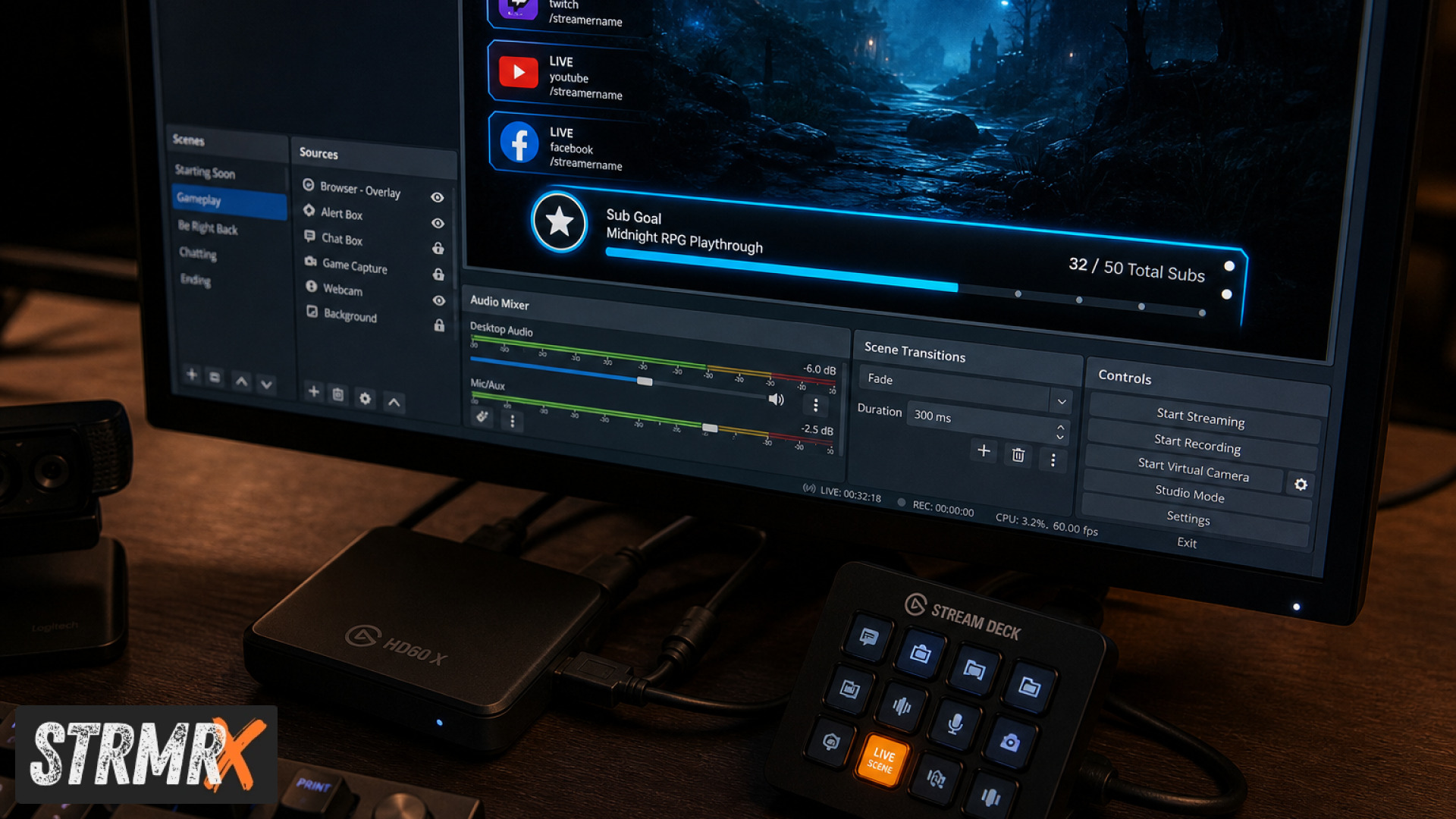
Multistream means broadcasting your Twitch stream to two or more platforms (like Kick or YouTube) at the same time, and you can set it up in under 30 minutes with zero new hardware. Since Twitch changed its exclusivity rules, variety streamers have been free to simulcast without buying a second capture card, a second PC, or any extra gear. This guide walks through exactly how to multistream free using tools that already fit a browser-based setup.
What You'll Need to Multistream Free
You need three things: an OBS or Streamlabs Desktop setup you already have, a free multistreaming service to fan your signal out to each platform, and overlays that don't care which platform they're rendering on. That's it. No second GPU, no separate encoding rig.
Because every StrmrX overlay runs as a plain browser source with nothing to install, the same BuzzBarX card or StreamPals pet displays identically whether the feed is going to Twitch alone or to Twitch, Kick, and YouTube together. That's the low-friction part variety streamers usually get wrong when they try to duplicate overlays per platform.
Step 1: Confirm You're Allowed to Multistream on Twitch
Yes, Twitch allows multistreaming today, as long as you're not under an exclusivity agreement that says otherwise. Twitch lifted its old simulcasting restrictions, and Twitch's official simulcasting announcement confirms creators can broadcast to rival platforms without losing standing on Twitch itself.
There are still guardrails. You need roughly matching stream quality across platforms and some restrictions on cross-promoting chat. Twitch's multistreaming compliance rules spell these out, and a quick read before you go live on Twitch and Kick at the same time saves you a partnership review headache later. A separate policy update on simulcasting rules confirms the same terms apply to YouTube.
Step 2: Pick a Free Multistream Tool
Choose a restreaming service with a free tier that pushes your OBS output to multiple RTMP destinations at once; that's the core of multistream Twitch and Kick setups. Most free tiers cap you at two or three destinations and add a small watermark, which is fine for a variety streamer testing the waters.
Set your primary destination as Twitch, add Kick or YouTube as a second target, and keep your bitrate around 6000 kbps so quality stays consistent across both, satisfying the quality-parity rule from Step 1. This is also the point to log in once with your free StrmrX account, since one shared credit wallet keeps every app in the family signed in no matter which platform your chat is watching from.
Step 3: Set Your Overlay Once, Use It Everywhere
Add each StreamKit overlay as a single browser source in OBS and it will broadcast to every destination without a second setup. Because nothing needs installing, there's no separate build to configure per platform, which is where heavier all-in-one dashboards tend to slow variety streamers down.
BuzzBarX is a good first overlay for a fresh multistream setup: it rotates your socials, commands, and house rules on-screen, then swells automatically for hype trains, raids, and follows on whichever platform triggers them. Drop it in once, resize it, and it's done for Twitch, Kick, and YouTube simultaneously.
Step 4: Keep Chat Manageable Across Platforms
Bridge your chats or run a shared moderation layer so viewers on Kick and YouTube feel as looped-in as your Twitch regulars. Split-screen chat windows work for small streams, but once you're past a handful of viewers on each side it gets noisy fast.
BotBuddyX can answer repeated questions and run commands so your mods aren't juggling three chat windows solo. For interactive segments, BingoX and PuzzleX both let viewers `!join` from chat and play along in real time, which keeps engagement steady even when your attention is split across platforms during a multistream.
Step 5: Grow Your Multistream Audience with RaidX
Use RaidX after your multistream ends to send your viewers to a live channel that matches your size, game, and camera type, in one click. This is the step new multistreamers skip, and it's the one that compounds: a good outgoing raid often gets remembered and returned.
RaidX tracks who's raided you back, which matters more once you're pulling viewers from two or three platforms and can't track it all in your head. All seven StreamKit apps, including RaidX, are free on the A tier, so none of this setup requires a paid plan to try.
Multistream Free: Confirming the Outcome
Following these five steps gets a variety streamer broadcasting to Twitch plus at least one more platform, with matching overlays and manageable chat, in about half an hour and no new gear. The multistream meaning here is simple: one OBS setup, one StrmrX account, several destinations.
Ready to try it? Sign up free at strmrx.com, drop BuzzBarX or BotBuddyX into your scenes, and multistream your next session with the StreamKit doing the overlay work. Questions along the way go to vibe@strmrx.com, straight to the two-person studio building it.
Frequently Asked Questions
What counts as "quality parity" under Twitch's multistreaming rules?
Quality parity means your stream can't look noticeably better on one platform than another, so you can't reserve your best bitrate or resolution for Twitch while Kick or YouTube get a downgraded feed. Setting your bitrate around 6000 kbps across the board, as suggested in Step 2, is a simple way to stay compliant without micromanaging separate encoder settings per destination.
How do I stop the free multistream tool's watermark from covering my overlays?
Most free restreaming tiers place the watermark in a fixed corner, so position browser-source overlays like BuzzBarX away from that spot when you set up your scene in Step 3. Since StrmrX overlays are single browser sources shared across every destination, you only need to adjust placement once rather than reposition it per platform.
Should I use split-screen chat windows or a bridging tool like BotBuddyX for multistreaming?
Split-screen chat windows are fine when you're only pulling a handful of viewers on each platform, but the post notes they get noisy fast once numbers grow. BotBuddyX is built for that scaling point, answering repeated questions and running commands so your mods aren't manually watching three separate chat windows during a live multistream.
Do I need a paid StrmrX plan to run all five multistream setup steps?
No. All seven StreamKit apps mentioned in the guide, including BuzzBarX, BotBuddyX, RaidX, BingoX, and PuzzleX, are available free on the A tier. That means the entire 30-minute multistream setup described in the post can be done without upgrading to a paid plan.
What happens if my Kick or YouTube channel gets raided back after using RaidX?
RaidX tracks which channels raid you back, so you can see returning traffic even when it's coming in from a platform other than where you originally sent the raid. That tracking matters most once you're multistreaming, since manually remembering who returned the favor across two or three platforms gets difficult fast.