StrmrX blog
How to Skip the Holiday Overlay Rush: Add an Interactive Twitch Overlay Last
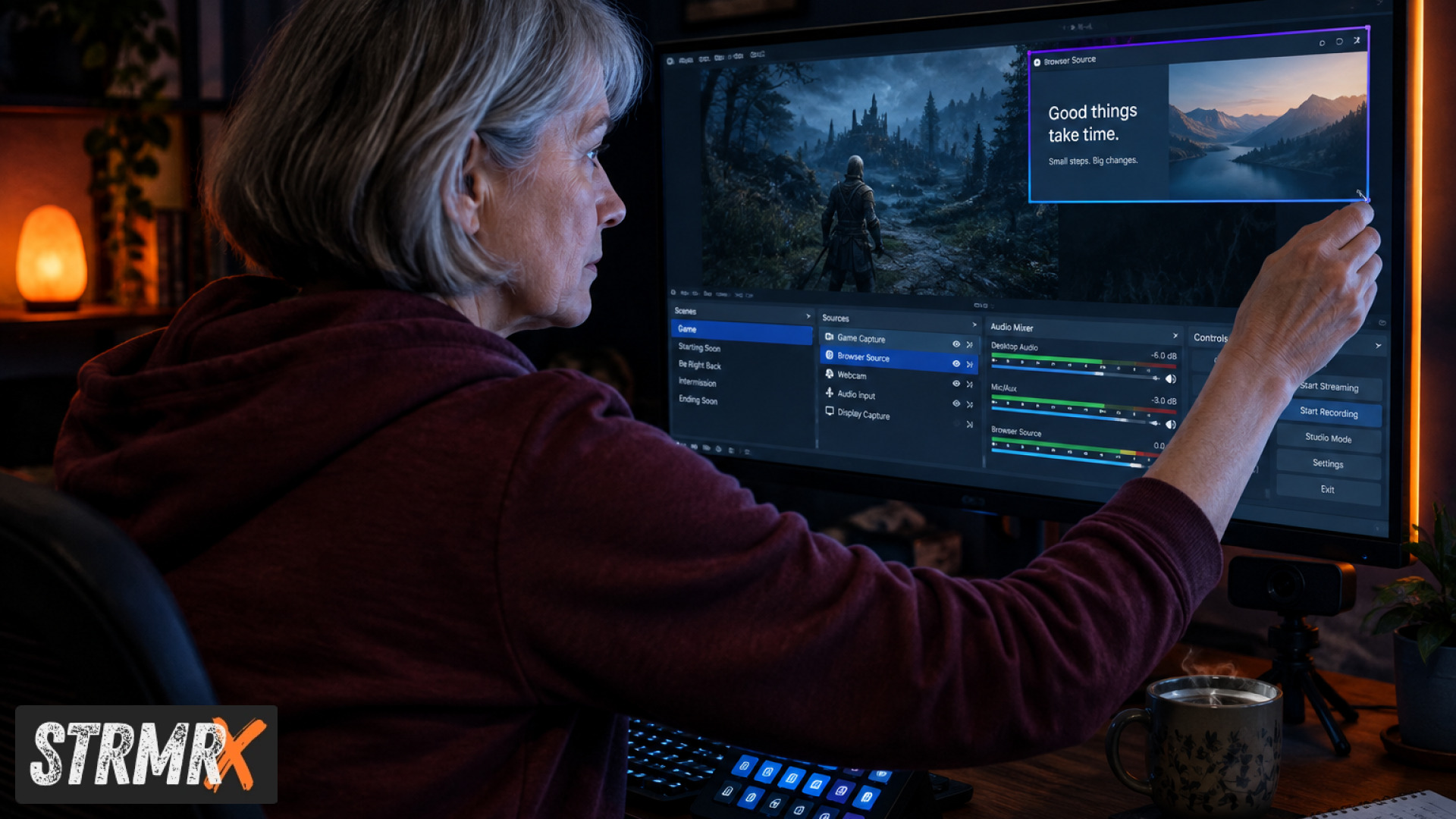
Skip the holiday overlay rush by adding your interactive Twitch overlay now, in early November, while setup takes 15 minutes instead of the 90-minute scramble streamers face the week before Christmas. Waiting until mid-December means fighting server load, rushed testing, and a chat that's already restless for new content during your biggest viewer weeks of the year. This guide walks through exactly how to add one, step by step, so it's live and working well before the holiday traffic hits.
Why Does Adding Your Interactive Twitch Overlay Now Beat Waiting Until December?
Adding your interactive Twitch overlay in November means you test it on a quiet stream, fix any OBS quirks without pressure, and walk into the holidays with something chat already knows how to use. December streams tend to pull bigger, less familiar crowds, which is the worst time to introduce an unfamiliar tool.
Shopping and planning behavior backs this up outside of streaming too. The NRF winter holiday trends data shows that holiday planning now routinely starts well before November, with shoppers and planners increasingly front-loading decisions rather than scrambling in December. Streamers benefit from the same logic: the people who set up early get the calm version of the process, not the panicked one.
There's also a practical overlay reason. An interactive overlay, whether it's a bingo card, a pet your chat feeds, or a puzzle chat solves together, needs a few live runs before viewers fully "get it." Every holiday stream you run before actually testing the overlay is a missed chance to build that habit in your community early, when the stakes and viewer counts are lower.
What You'll Need Before You Start
You need three things: OBS or Streamlabs Desktop already running your stream, a free StrmrX account, and about 15 minutes of setup time on a non-live test session. Nothing here requires installing software beyond what you already use to stream.
- OBS Studio or Streamlabs Desktop, already configured with your main scene
- A free StrmrX account, which signs you into every app in the StreamKit family with one shared credit wallet
- 5 to 15 minutes of downtime before or after a stream to test without an audience watching
- A mod or friend to help test chat commands from a second account, if possible
That's genuinely it. Because every StrmrX app runs entirely in the browser, there's nothing to download, install, or keep updated on your machine.
Step 1: Pick One Interactive Overlay App to Start With
Choose a single app from StrmrX's seven free A Tier tools rather than trying to launch several at once. Trying to onboard chat to three new overlays in one stream dilutes attention and makes troubleshooting harder when something doesn't render correctly.
For streamers wanting straightforward holiday-season engagement, BingoX (chat-wide bingo where viewers type !join and you call the balls) and CollectX (a collection grid chat ticks off live with you) tend to be the easiest first picks because the mechanic is instantly understandable. If you want something lower-key running in the background, StreamPals, a chibi pet the whole stream feeds, waters and plays with, works well without demanding constant attention from you as host.
Watch for: picking an overlay that doesn't match your stream's pace. A fast-moving puzzle like PuzzleX suits a chat that's already highly active, while BuzzBarX, the rotating on-screen card for socials and hype trains, suits quieter streams that want passive engagement.
Step 2: Create Your Free StrmrX Account
Sign up for a free StrmrX account at strmrx.com, which immediately gives you access to all seven A Tier apps under one login and one shared credit wallet. There's no separate signup per app, so you're not juggling multiple logins or multiple dashboards the way some competitor suites require.
Once logged in, you'll get a unique overlay link for whichever app you chose in Step 1. This link is what gets pasted into OBS later, so keep the browser tab open or copy it somewhere handy.
Watch for: confirming your Twitch channel connection during setup. The overlay needs this link to actually read chat commands like !join, so skipping the connection step is the most common reason an overlay looks fine visually but doesn't respond to chat.
Step 3: Add the Overlay as a Browser Source in OBS
Add your interactive Twitch overlay by opening OBS, clicking the plus icon under Sources, selecting Browser, and pasting the unique link from your StrmrX dashboard into the URL field. This is the same browser source method OBS uses for any web-based overlay, and it's documented in detail in the official OBS browser source docs.
Name the source something recognizable, like "BingoX Overlay," so you can find it quickly later if you're layering in a second app. Click OK, and the overlay should render in your preview window within a few seconds.
Watch for: a blank or frozen box where the overlay should be. This almost always means the link wasn't fully copied, or the browser source's "Shutdown source when not visible" setting is interfering. Toggling that setting off usually fixes it.
Step 4: Size and Position the Overlay Without Breaking Your Layout
Resize and drag the browser source in your OBS preview so the overlay sits somewhere visible but not blocking your webcam, game capture, or chat box. Most interactive overlays work fine anywhere from a corner panel to a full lower-third strip, depending on the app.
For step-by-step guidance on resizing, layering source order, and keeping sources from overlapping awkwardly, OBS's own OBS sources setup guide covers the basics clearly if this is your first time adjusting source order.
Watch for: placing an overlay like BingoX or CollectX too close to fast-moving game footage, where viewers' eyes get pulled away from both. A static corner, roughly 15 to 20 percent of screen width, tends to read clearly without competing with gameplay.
Step 5: Test the Interactive Overlay With a Friend or Mod Before Going Live
Run a quick non-live or low-visibility test by asking a friend or mod to type the overlay's trigger command, like !join for BingoX, from their own Twitch account while you watch the overlay respond in real time. This confirms chat is actually connected before an audience ever sees it.
Testing solo doesn't catch everything, because you can't type in your own chat the same way a viewer does. A second person triggering commands is the only reliable way to see the full loop: command typed, overlay updates, you as host see the result.
Watch for: delayed responses longer than a couple of seconds, which usually points to a connection issue between StrmrX and your Twitch channel rather than an OBS problem. Re-checking the channel link in your StrmrX dashboard from Step 2 resolves most of these.
Step 6: Layer in a Second App Once the First Feels Easy
Add a second StrmrX app only after your first overlay has run cleanly across two or three real streams. Because one free StrmrX account already unlocks all seven A Tier apps, there's no new signup needed, just a second browser source with that app's unique link.
A natural pairing for the holidays is BuzzBarX alongside whichever interactive overlay you started with. BuzzBarX rotates your socials, commands, and house rules on screen and swells automatically for hype trains, raids, and follows, which adds passive hype without needing chat to do anything extra.
Watch for: overlay crowding. Two overlays is usually the practical ceiling for most layouts before the screen starts feeling busy, especially on a webcam-heavy layout with limited free space.
What Happens If You Wait Until the Holiday Rush?
Waiting until mid-to-late December to add an interactive overlay means doing all six steps above during your highest-traffic, highest-pressure streaming weeks instead of a quiet November afternoon. Bugs that would be minor annoyances in November become live, on-screen problems in front of a bigger holiday audience.
There's also a habit-forming cost. Chat communities that haven't used an overlay before need a few runs to learn the mechanic, whether that's typing !join for BingoX or ticking off a CollectX grid. Introducing that learning curve during a one-off holiday special, rather than during a normal stream, means spending part of your special explaining mechanics instead of enjoying the payoff.
None of the setup described above requires paid tiers. All seven StrmrX apps, BingoX, CollectX, StreamPals, BotBuddyX, PuzzleX, BuzzBarX, and RaidX, are free on the A Tier right now. Streamers who want premium resources, priority features, and early access can move to S Tier at $9 a month, and X Tier at $19 a month unlocks the full StreamKit with every app plus VIP support, but neither is required to run the setup in this guide.
Keeping Your Interactive Twitch Overlay Running Smoothly Through the Holidays
Once your interactive Twitch overlay is added, tested, and sitting cleanly in your layout, the outcome is a working overlay your chat already knows how to use before the busiest streaming weeks of the year arrive. That's the entire point of doing this in November instead of December: the hard part happens early, quietly, on a stream nobody's stressed about.
From here, the next step is simple. Create a free account at strmrx.com, pick one app from the seven available, and run through the six steps above on your next stream. StrmrX is built by a two-person independent studio that streams too, so every app is kept deliberately small, fast, and low-friction rather than bundled into one heavy dashboard you have to learn all at once. If something doesn't click during setup, reach the team directly at vibe@strmrx.com, they're the ones building it.
Frequently Asked Questions
What's the difference between BingoX and CollectX if both sound like chat games?
BingoX is a chat-wide bingo card where viewers type !join and you call the balls live, so it's built around one shared win condition. CollectX is a collection grid chat ticks off together over the course of a stream, which rewards steady participation rather than a single payoff moment. Pick BingoX if you want a quick, repeatable round; pick CollectX if you want something that builds across a longer stream.
How do I know if "Shutdown source when not visible" is causing my blank overlay in OBS?
If your StrmrX overlay shows as a blank or frozen box in the OBS preview, check that setting first in the Browser Source properties before troubleshooting anything else. Toggling it off keeps the browser source active even when it's temporarily hidden behind another scene, which is the most common fix. If the overlay still won't load after that, re-copy the unique link from your StrmrX dashboard, since a partially copied URL causes the same symptom.
Should I start with BuzzBarX or BingoX if I only have time to test one overlay before a stream?
BingoX asks more of your chat upfront since viewers need to learn !join, so it's the better pick when you have time to run a real test with a friend or mod beforehand. BuzzBarX runs passively in the background and swells automatically during raids, follows, and hype trains without needing chat to do anything, making it the safer choice if you're short on testing time. The post's six-step process is built around testing one overlay properly, so match your pick to how much setup time you actually have.
Do I need a paid StrmrX tier to run two overlays like BingoX and BuzzBarX together?
No, all seven A Tier apps, including BingoX, BuzzBarX, CollectX, StreamPals, BotBuddyX, PuzzleX, and RaidX, are free under one shared account and credit wallet. Layering a second overlay just means adding another browser source with that app's unique link, no new signup or payment required. S Tier ($9/month) and X Tier ($19/month) exist for streamers who want premium resources or priority support, but neither is necessary for the setup described in this guide.
What happens if my chat still doesn't know how to use the overlay even after I test it in November?
A single test run with a friend confirms the technical connection works, but chat habits form through repetition, so plan to run the overlay across two or three real streams before the holidays, as the post recommends for layering in a second app. If viewers still seem confused after a few streams, double-check that your Twitch channel connection is still active in your StrmrX dashboard, since a dropped connection can make a previously working overlay suddenly stop responding to commands like !join.