StrmrX blog
The Complete Guide to Chat on Twitch for Just Chatting Streamers
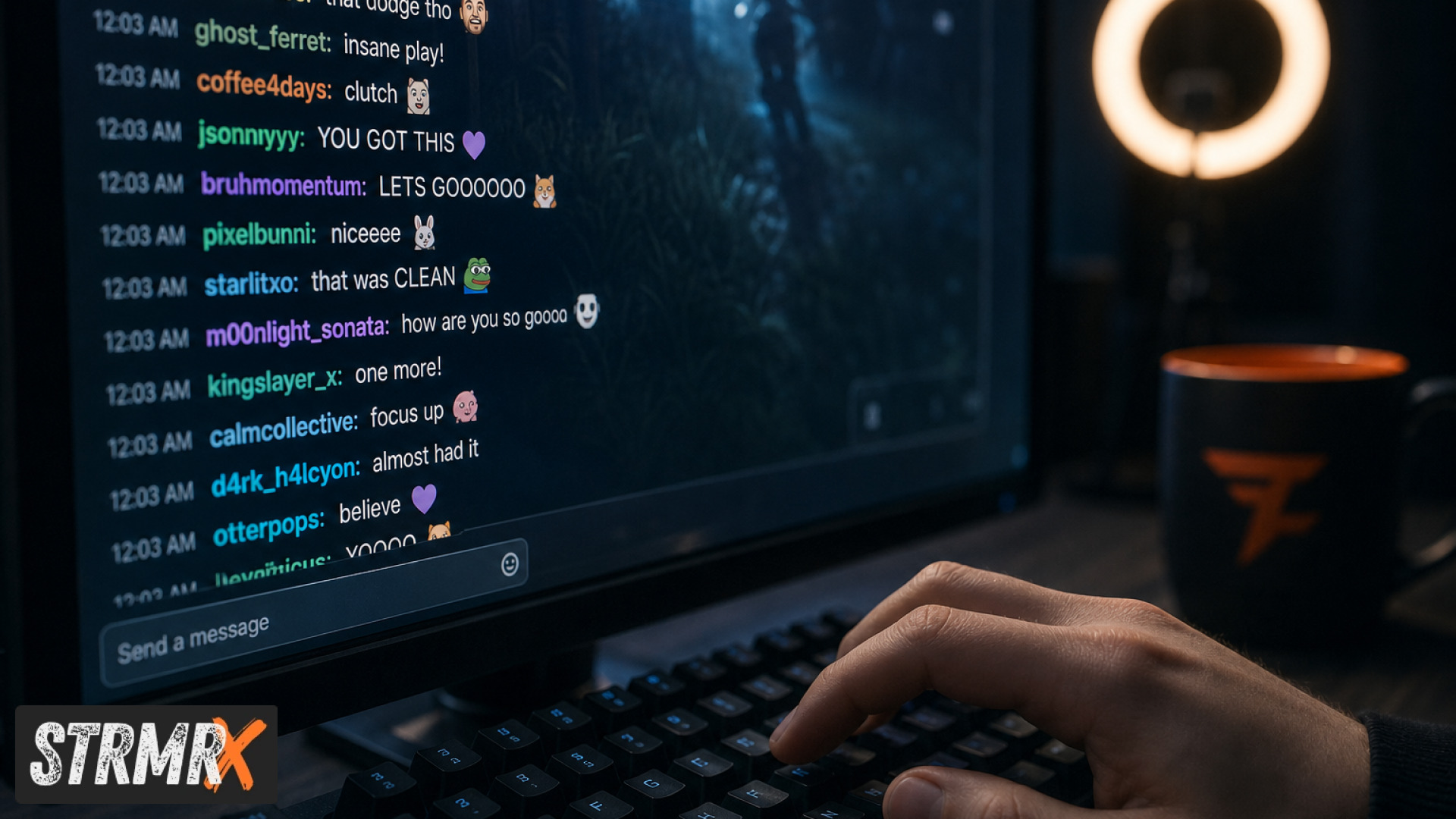
Chat on Twitch is the live text feed next to your video where viewers talk to you and each other in real time, and you turn it on (or fix it when it's not working) through the Twitch chat settings in Creator Dashboard or the chat box itself. For Just Chatting streamers, that little sidebar isn't a side feature, it's the whole show. This guide walks through setup, mobile chat, moderation, common mistakes, and how to turn a quiet chat box into the reason people stay for three hours.
This guide is built for Just Chatting streamers of any size, from someone with 5 viewers testing OBS for the first time to a 500-viewer channel that needs real moderation tools. Here's what it covers:
- How chat on Twitch actually works and how to enable it
- Fixing chat on desktop and mobile, including the Twitch chat app
- Chat overlays for OBS and Streamlabs Desktop
- Moderation basics and chat filter settings
- Common mistakes that kill chat engagement
- Advanced tips and tools, including where StrmrX fits in
What Is Chat on Twitch and How Does It Work?
Chat on Twitch is a real-time messaging feed attached to every live stream, powered by Twitch's own chat protocol (a variant of IRC), where anyone with a Twitch account can type messages, use emotes, and run commands that bots or extensions can react to. It updates instantly for everyone watching, which is what makes it feel like a shared room instead of a comment section.
For Just Chatting streamers specifically, chat often carries more weight than gameplay footage. There's no game screen pulling focus, so the conversation between you and chat becomes the content. That means chat health, speed, and moderation directly affect watch time in a way it doesn't for, say, a competitive shooter stream where viewers are half-watching.
Chat also connects to a wider ecosystem of bots and overlays that read messages and trigger actions, things like a bot answering a question automatically, an overlay reacting to a follow, or a mini-game that runs entirely through chat commands. This is where a lot of the streamer tooling market, including apps built by StrmrX, actually lives.
How Do You Enable Chat on Twitch on Any Device?
You enable chat on Twitch automatically the moment you go live. There's no separate "turn chat on" switch for a standard channel, but there are settings that control who can post and how.
From the Creator Dashboard, under Settings then Moderation, you can set:
- Follower-only mode (viewers must follow for a set time before chatting, from 0 minutes up to a custom window)
- Subscriber-only mode
- Slow mode (spaces out messages, useful for large raids)
- Emote-only mode
If chat looks empty or disabled to viewers, it's almost always one of these modes filtering people out, not chat actually being off.
Why Can't I Chat on Twitch on PC? Common Fixes
If you can't chat on Twitch on PC, the most common causes are an ad blocker interfering with the chat frame, an expired login session, a browser extension conflict, or the channel having follower/subscriber-only mode enabled while you don't meet the requirement.
Try these in order: refresh the page, log out and back in, disable extensions one at a time (ad blockers are the usual culprit), and check whether the streamer has restricted chat. If you're using the desktop Twitch app rather than the browser, updating it or switching to twitch.tv directly often resolves the issue immediately.
How Do You Type in Twitch Chat on Mobile Using the Twitch Chat App?
You type in Twitch chat on mobile by opening the stream in the official Twitch app, tapping the chat icon (usually a speech bubble in the bottom right), and using the text field that appears above the keyboard. The chat on Twitch app experience is nearly identical to desktop, just condensed.
A few mobile-specific notes worth knowing:
- Landscape mode often hides chat by default so the video can fill the screen; tap the screen to bring controls back.
- Emotes load in a scrollable tray, tap the smiley icon next to the text field.
- If the keyboard covers your message as you type, that's a known layout quirk, scroll the chat feed up manually after sending.
If typing isn't working at all, check the same follower/subscriber restrictions covered above, they apply identically on mobile.
How Do You See Twitch Chat on Mobile and Manage It on iPhone?
You see Twitch chat on mobile by tapping the chat bubble icon while watching a stream in the Twitch app; it slides out as an overlay panel over or beside the video depending on orientation. If chat isn't visible, you're most likely in fullscreen landscape mode where it auto-hides.
On iPhone specifically, chat sits as a semi-transparent panel over the bottom two-thirds of the stream in portrait mode. Tapping anywhere on the video (outside the chat panel) toggles it away temporarily so you can watch unobstructed.
How to Hide Chat on Twitch on iPhone
To hide chat on Twitch on an iPhone, tap the chat icon again to collapse the panel, or rotate into fullscreen landscape where it hides automatically until you tap the screen. There's no permanent "chat off" toggle in the mobile app the way there is in some third-party clients, it's a per-view show/hide state.
What Are Twitch Chat Filter Settings on Mobile?
Twitch chat filter settings on mobile let you control which messages appear in your view, including filtering out chat from accounts you don't follow, blocking specific words, and hiding messages from users you've muted or blocked. You'll find these under your profile icon, then Settings, then Chat.
The most useful ones for viewers dealing with fast-moving chat:
- Badges display: toggle whether sub badges and other icons show, which speeds up scanning on small screens.
- Blocked words: personal filter, separate from the streamer's own moderation.
- Whispers settings: control who can DM you through Twitch.
For streamers, your own moderation settings (covered next) are separate from what individual viewers filter on their end, both layers matter for a clean chat experience.
What Is a Twitch Chat Overlay and Why Just Chatting Streamers Need One?
A Twitch chat overlay is a visual element added on top of your stream video, inside OBS or Streamlabs Desktop, that displays chat messages, alerts, or chat-driven graphics directly on screen instead of only in the sidebar. For Just Chatting streamers, this matters because your camera often fills the whole frame, so chat needs a place to live visually if you want viewers watching on mobile or in fullscreen to follow along.
This is also where StrmrX's overlays are built to be genuinely low-friction. Every StrmrX overlay is a browser source, meaning you paste one link into OBS or Streamlabs Desktop and it's live, nothing to download or install. That's a deliberate difference from heavier all-in-one dashboards: StrmrX ships small, fast tools instead of one bloated control panel.
Two apps built specifically for this: BuzzBarX, an on-screen card that rotates your socials, commands, and house rules, and swells up automatically for hype trains, raids, and new follows, and BotBuddyX, an AI chatbot overlay presence that answers chat questions and runs commands live. Both sign in through the same free StrmrX account as every other app in the family.
How Do You Moderate Chat on Twitch?
You moderate chat on Twitch by assigning trusted viewers as moderators (type /mod username in your own chat), combined with Twitch's built-in AutoMod, which automatically filters messages for profanity, harassment, and spam based on a sensitivity level you set from low to high.
Beyond AutoMod, effective moderation for Just Chatting streamers usually includes:
- A blocked terms list tailored to your community, not just the default filter
- Timeout and ban commands your mods know how to use quickly
- Follower-only or slow mode ready to trigger during raids or clip spikes
- Clear, pinned house rules so new viewers know expectations fast
For the full breakdown straight from the source, Twitch's Official Twitch Moderation Guide covers permission levels and dashboard tools in detail, and the Twitch Guide for Moderators is worth sharing with anyone you promote to mod so they understand the tools before they're using them live. If you or a mod ever want to understand what's happening technically under the hood, the Twitch Developer Chat Docs lay out the actual API scopes and permissions Twitch uses to manage chat moderation.
StrmrX's own chatbot, BotBuddyX, layers on top of this by answering repetitive chat questions automatically (schedule, socials, rules) so your human mods spend less time typing and more time watching for actual problems.
How Do You Turn Chat on Twitch Into an Interactive Experience?
You turn chat on Twitch into something interactive by giving viewers a way to participate beyond typing messages, through chat-command games, shared collections, or communal goals that everyone in the room can see progress on. This is the single biggest engagement lever available to a Just Chatting streamer, because it converts passive lurkers into active participants.
StrmrX's full app family (branded together as the StreamKit) is built around exactly this, and all seven are free on the A tier:
- BingoX: chat-wide bingo where viewers type
!joinand you call the balls live. - CollectX: a collection grid chat fills in together over the course of a stream.
- StreamPals: a chibi pet the whole chat feeds, waters, and plays with.
- BotBuddyX: an AI chatbot that answers chat and runs commands.
- PuzzleX: a real-time puzzle chat solves together, on stream or at a private table.
- BuzzBarX: the rotating on-screen card covered above.
- RaidX: finds live channels that match your stream by size, game, and camera type, raids in one click, and remembers who raided you back.
Because every app shares one free StrmrX account and one credit wallet, you're not juggling separate logins the way you often do stitching together tools from StreamElements, Streamlabs, Nightbot, Fossabot, Wizebot, or OWN3D. If you want more than the free tier, S Tier is 9 dollars a month for premium resources, priority features, and early access, and X Tier is 19 dollars a month for the entire StreamKit unlocked plus VIP support. As a two-person independent studio built by streamers, StrmrX keeps each app small and fast on purpose rather than pushing one heavy dashboard.
What Mistakes Do Just Chatting Streamers Make With Chat?
The biggest mistake is treating chat as background noise instead of the main interaction loop, which shows up as streamers who don't read messages aloud, don't acknowledge new followers, or let questions pile up unanswered. Here are the ones that come up constantly:
- No moderation until it's a crisis: Setting up AutoMod and mods after a raid brings unwanted chat, not before.
- Ignoring mobile viewers: If your overlay text is tiny, viewers checking chat on Twitch on mobile can't read it either.
- Too many manual replies to the same question: "What game is this," "what's your schedule," answered fifty times a stream instead of automated once.
- No reason to type: Chat with nothing to react to, vote on, or contribute toward goes quiet fast.
- Overcomplicated setup: Installing a heavy desktop app or dashboard just to run one command bot, when a browser-based overlay would take two minutes.
Advanced Tips for Growing an Engaged Chat Community
Advanced chat growth on Twitch comes from giving regulars a sense of ownership and momentum, not just from bigger raw numbers. Once the basics (moderation, overlays, working mobile chat) are handled, these tactics compound over weeks, not single streams.
- Run a recurring chat game. A weekly BingoX round or an ongoing CollectX grid gives regulars a reason to show up on a schedule, the same way a running joke does.
- Use raids strategically, not randomly. RaidX matches you to channels by size, game, and camera type before you raid, which builds reciprocal relationships with similarly-sized streamers instead of dumping viewers into a channel with nothing in common.
- Automate the repetitive, keep the personal. Let BotBuddyX handle "what's your PC spec" so you can spend that attention on the viewer who just told a genuinely good story.
- Keep the on-screen info current. A BuzzBarX card that swells for hype trains and raids gives new viewers instant context on socials and rules without you saying it verbatim every ten minutes.
Conclusion: Your Twitch Chat Setup Checklist
Getting chat on Twitch right for a Just Chatting stream isn't complicated, it's a handful of settings and one or two tools done properly. Before your next stream, run through this:
- Follower/subscriber/slow mode set appropriately for your channel size
- AutoMod sensitivity checked and mods assigned
- Chat overlay tested on both desktop and mobile view
- A working chat command bot for repetitive questions
- At least one interactive element (a chat game, collection, or pet) giving viewers a reason to type
If you're ready to add that interactive layer, StrmrX's seven browser-based apps are free to start on the A tier, sign in once with a free StrmrX account and every app, from BingoX to RaidX, shares the same login and credit wallet. Head to strmrx.com or reach the two-person team directly at vibe@strmrx.com to get set up. Learn. Stream. Vibe.
Frequently Asked Questions
Does slow mode stop raids from flooding chat, or just make it more readable?
Slow mode doesn't block raid traffic, it just spaces out how often each person can send a message, which keeps a sudden wave of new viewers from turning chat into an unreadable wall of text. It's meant to be toggled on right as a raid hits, then turned back off once things settle, rather than left running all the time.
How do I get BuzzBarX or BotBuddyX actually showing up on my stream?
Both are browser source overlays, so you grab the link from your free StrmrX account and paste it into a Browser Source in OBS or Streamlabs Desktop, no downloads or installs involved. Once it's added, BuzzBarX starts rotating your socials and rules automatically, and BotBuddyX starts answering chat questions live without any extra setup per stream.
Why would I use StrmrX's apps instead of stitching together Nightbot, StreamElements, and Streamlabs?
Those tools each require their own login, their own settings, and often their own dashboard to relearn, whereas every StrmrX app (BuzzBarX, BotBuddyX, BingoX, and the rest) runs through one free account and one shared credit wallet. Instead of one heavyweight all-in-one dashboard, StrmrX intentionally keeps each app small and single-purpose so you only add what you'll actually use.
What does S Tier or X Tier actually unlock if I'm already using the free apps?
The free A tier gives you all seven StreamKit apps at their base level, so S Tier (9 dollars a month) adds premium resources, priority features, and early access to new tools, while X Tier (19 dollars a month) unlocks the entire StreamKit fully plus VIP support. Most streamers can run a solid Just Chatting setup on the free tier and only upgrade once a specific app, like BotBuddyX or BingoX, becomes a core part of the show.
If a viewer's chat still won't load after I've checked follower-only mode, what else could be wrong?
Beyond mode restrictions, the next suspects are an ad blocker snagging the chat frame, an expired login session, or a browser extension quietly conflicting with Twitch's chat script. Refreshing the page, logging out and back in, and disabling extensions one at a time (starting with ad blockers) resolves the vast majority of cases that aren't actually about chat settings at all.