StrmrX blog
Set Up Chat for Twitch Call-and-Response in 10 Minutes Flat
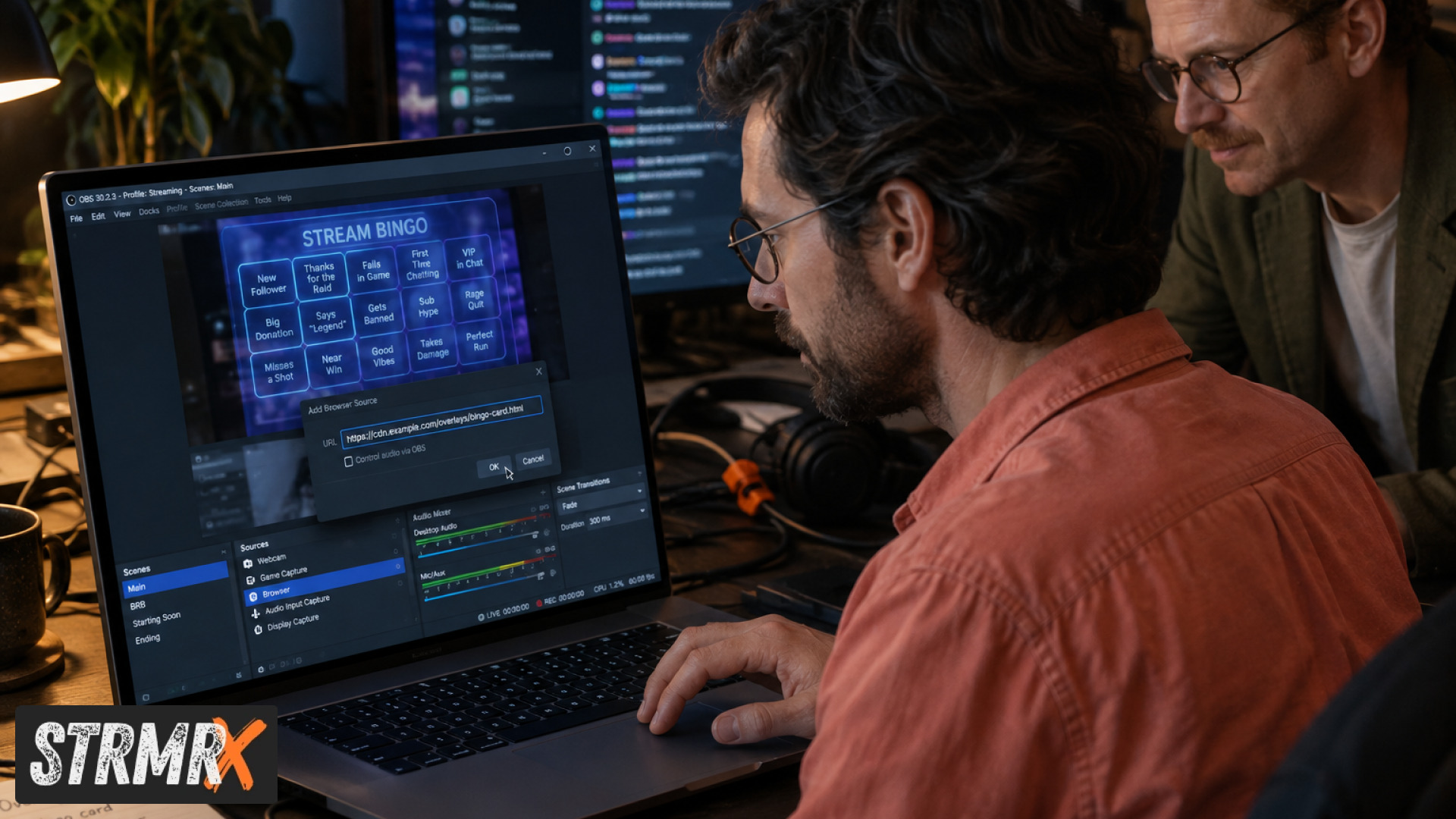
Chat for Twitch call-and-response is a setup where your chat talks back and your stream reacts in real time, think viewers typing !join to get a bingo card, or chat voting on what happens next while a live overlay updates on screen. You can have one running in OBS in about 10 minutes using free browser-source tools, no coding and no installs required.
What You'll Need Before You Start
You need three things: OBS or Streamlabs Desktop already installed, a free StrmrX account, and five minutes of downtime between streams to test it. That's the whole list.
StrmrX apps run entirely in the browser, so there's nothing to download and nothing to update. One account signs you into every app in the StreamKit family with a single shared credit wallet, which matters here because you'll likely want to try more than one call-and-response tool before you settle on a favourite.
Step 1: Pick Your Chat for Twitch Call-and-Response Tool
Choose the app that matches the kind of back-and-forth you want, since "call-and-response" covers a few different formats. For a classic numbers game where viewers type !join and you call the balls live, BingoX is built exactly for that. For a slower-burn version where chat ticks items off a shared board across a whole stream or season, CollectX fits better, and for a shared puzzle chat solves together in real time, PuzzleX is the pick.
All three are free on StrmrX's A tier today, so there's no cost barrier to trying each one for a stream before committing.
Step 2: Create Your Free StrmrX Account
Head to strmrx.com, sign up with the account tied to your Twitch channel, and you're credentialed for all seven StreamKit apps at once. This one login gets you into BingoX, CollectX, StreamPals, BotBuddyX, PuzzleX, BuzzBarX and RaidX without re-registering for each.
Because the credit wallet is shared across the whole family, any credits you don't use in one app carry over if you decide to run BotBuddyX for command-based responses alongside your bingo or puzzle overlay. Skip this step and you'll hit a login wall the moment you try to drop the overlay into OBS.
Step 3: Add the Overlay as a Browser Source in OBS
In OBS or Streamlabs Desktop, add a new Browser Source, paste in the overlay URL the app gives you, and size it to fit your layout. This is the core of why a Twitch chat overlay OBS setup like this is so low-friction: there's no plugin to install and no separate chat dock to manage, the overlay just renders like any other browser source.
Set the resolution to match your canvas (1920x1080 is standard) and tick "Shutdown source when not visible" off if you want the game state to persist between scene switches. Watch for one common mistake here: forgetting to refresh the browser source cache after you change a setting in the app, which leaves you staring at stale data mid-stream.
Step 4: Set Your Call-and-Response Prompts
Write the exact chat commands you want viewers to type, since clear, short commands are what make a call-and-response segment actually work. In BingoX that's !join to grab a card; in PuzzleX it's typically a single-letter or coordinate guess chat can spam without cluttering the room.
Keep the command list to two or three entries. The official Twitch chat commands reference is worth a skim if you're layering your own BotBuddyX responses on top, since it lays out exactly how PRIVMSG-based commands and scopes behave in chat.
Step 5: Test It Live With a Few Viewers Before You Go Live
Run a quick private test with a mod or two in a short unlisted stream, or trigger the commands yourself from a second account, before you put the overlay in front of your real audience. This catches the two failure points that actually matter: overlay sizing that clips on smaller resolutions, and commands that collide with other bots already running in your chat, like Nightbot or StreamElements commands you haven't retired yet.
Once the test run goes clean, you're set. The whole sequence, from account creation to a working overlay, genuinely fits inside a 10-minute pre-show checklist once you've done it once.
Why Chat for Twitch Call-and-Response Keeps Viewers Engaged
Chat for Twitch call-and-response works because it turns passive lurkers into active participants with almost zero effort on their end, typing one short command is a much lower bar than writing a full message. Streams that run a live bingo round or shared puzzle tend to see chat stay noticeably busier through the segment than during a quiet gameplay stretch, simply because there's a reason to type.
It also gives smaller streamers, the 5 to 500 average viewer range StrmrX builds for, a way to make a 20-person chat feel alive without needing hundreds of concurrent viewers. A card game or a shared puzzle board scales down just as well as it scales up.
Further Reading on Twitch Chat Infrastructure
If you want to understand what's happening under the hood of any chat for Twitch tool, Twitch's own developer documentation is the clearest source. The Twitch chatbot getting-started guide walks through connecting a bot to chat over WebSocket or TCP, and the Twitch IRC concepts docs cover the connection URIs and message tags that power features like command parsing and viewer join detection.
Conclusion
A working chat for Twitch call-and-response setup doesn't need a heavy all-in-one dashboard or a paid plugin bundle. With a free StrmrX account, one browser source in OBS, and an app like BingoX, CollectX or PuzzleX, you can have chat actively playing along inside 10 minutes, and keep it running stream after stream without touching an installer again. Head to strmrx.com to create your free account and drop your first overlay into OBS tonight, or reach the two-person team behind StrmrX at vibe@strmrx.com if you hit a snag setting it up.
Frequently Asked Questions
What's the actual difference between BingoX, CollectX, and PuzzleX for call-and-response?
BingoX is built for fast, live rounds where viewers type !join and you call numbers in real time. CollectX is slower-paced, letting chat check off items on a shared board across an entire stream or even a season. PuzzleX sits in between, giving chat a single puzzle to solve together using short guesses like letters or coordinates.
How do I stop my call-and-response commands from colliding with Nightbot or StreamElements?
Run a private test stream with a mod or a second account before going live, and watch specifically for command overlap with bots you haven't retired yet. If you spot a collision, rename the conflicting command in your StrmrX app settings or disable the matching command in your other bot entirely. This is exactly the failure point Step 5 is designed to catch before real viewers ever see it.
Do I need BotBuddyX if I'm already running BingoX or PuzzleX?
No, BotBuddyX is optional and meant for layering extra command-based responses on top of whatever call-and-response app you're already running. Since all StreamKit apps share one credit wallet, there's no extra account setup involved if you decide to add it later. Plenty of streamers run BingoX or PuzzleX on their own without touching BotBuddyX at all.
How much does it cost to try BingoX, CollectX, and PuzzleX before picking one?
Nothing - all three are free on StrmrX's A tier, so you can run each one on a separate stream before settling on a favourite. There's no trial limit or credit card required to start, since the shared credit wallet covers access across the whole StreamKit family. That makes it easy to test a bingo round one night and a puzzle board the next without any cost barrier.
What happens to my overlay's game state if I switch OBS scenes mid-round?
That depends on one checkbox: in the Browser Source settings, untick "Shutdown source when not visible" if you want the game state to persist while you're on a different scene. Leaving it ticked will reset or reload the overlay each time it goes off-screen, which can cut off an in-progress bingo card or puzzle. If your overlay looks stale after a scene switch, also try refreshing the browser source cache, since that's a separate common snag mentioned in Step 3.